
The Payment Portal is a secure patient payment website that allows providers to take payments online. This functionality makes it easier and faster for the patient to make a payment and the provider to receive it.
Note: The appearance of this screen may differ based on the payment processor associated with the TPID in use.
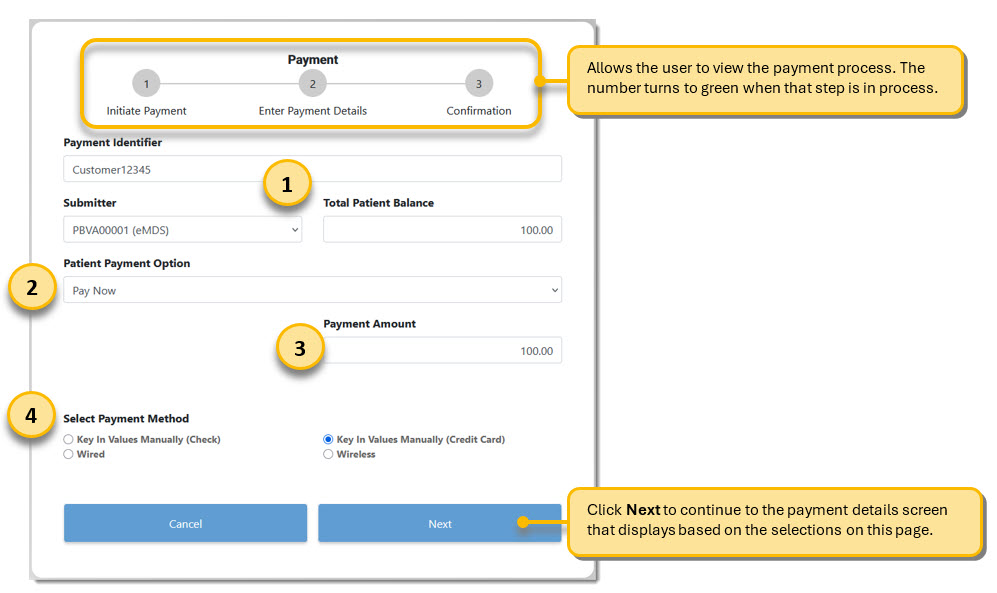
This section includes fields for the Payment Identifier, Submitter ID, and Total Patient Balance.
Users can select the desired Patient Payment Option from the drop-down menu. Options are based on the submitter or account setup and may include Pay Now, Provider Payment Plan, and Patient Financing. The screen dynamically changes based on the payment option selected. Please refer to the Patient Payment Options section of the Help for more information on the various payment options. The example above is for the Pay Now option.
Enter the Payment Amount for this payment. This field may be auto-populated and disabled depending on the selected payment option.
Select a Payment Method. This screen dynamically changes based on the selected submitter. Users have the option to enter values manually or use a payment device. Values may be pre-populated if provided by the customer.
To access the Payment Portal and make a payment:
Click Make Payment from the Payment Transactions screen. 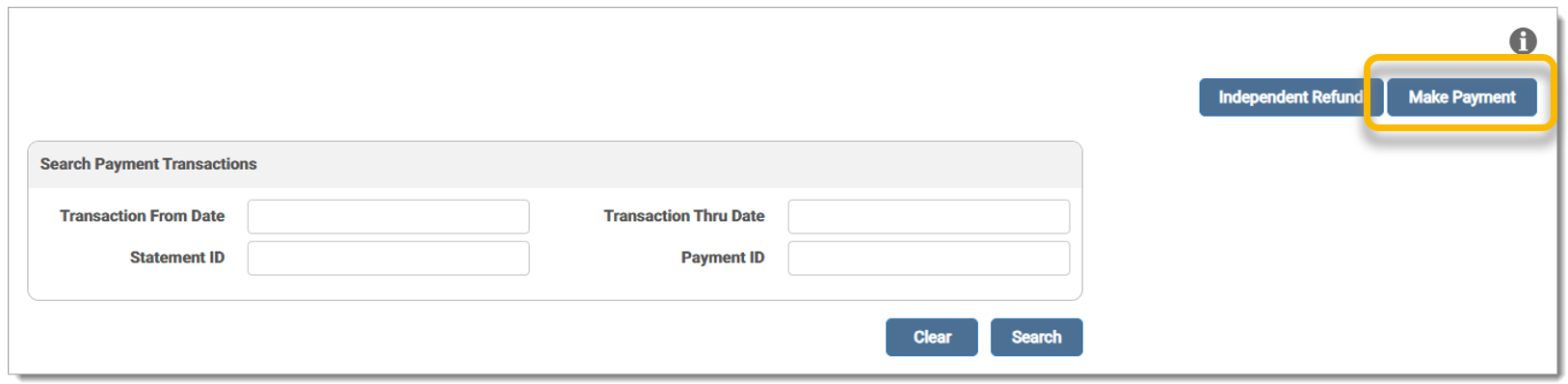
The Payment Portal is launched from eMEDIX Online. Enter the Payment Identifier and select the Submitter from the drop-down menu. Enter the Payment Amount. The Patient Payment Option drop-down menu and Payment Method types display based on what is available for the selected Submitter and is dependent on site setup. Select the Patient Payment Option, and then the radio button for the desired payment method (Checking/Savings or Credit Card, Wired/Wireless).
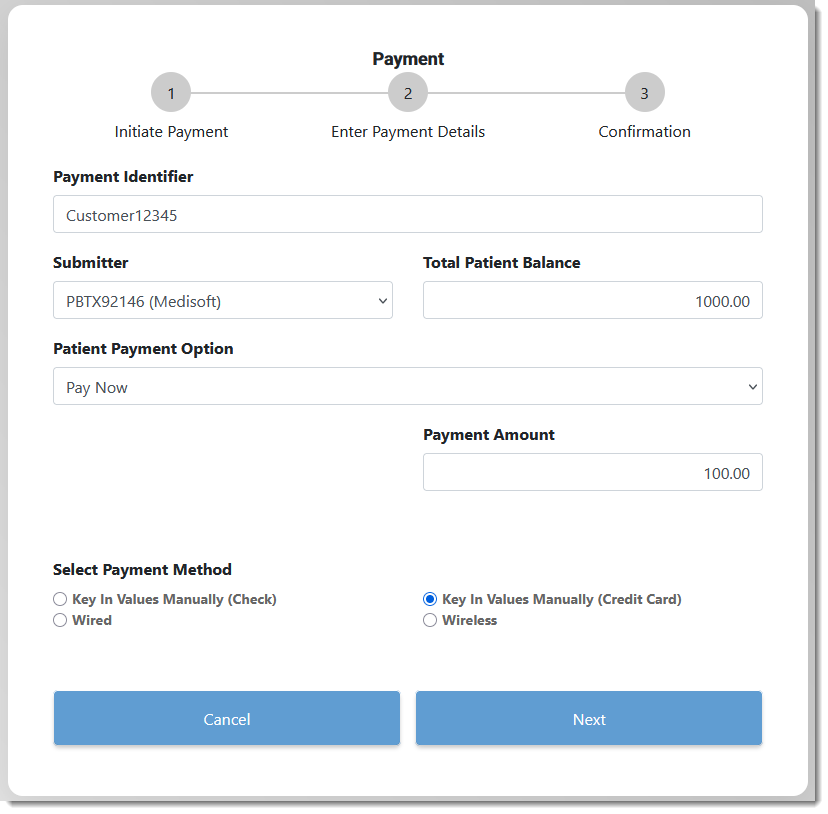
Click Next to initiate payment.
Checking or Savings: Select the radio button for either Checking or Savings. Enter all the account values. All fields other than check number are required.
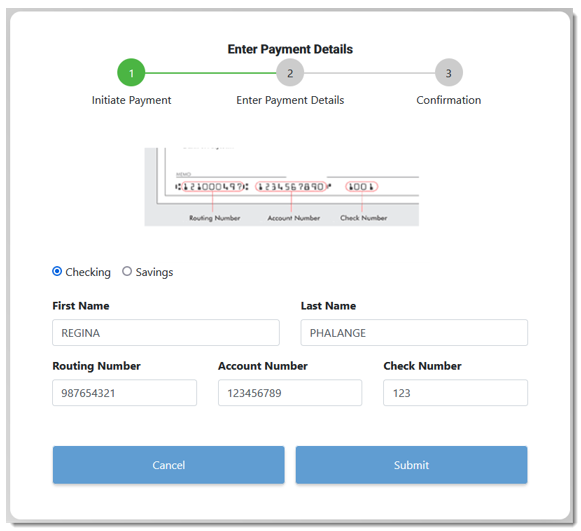
Credit Card: Enter all the values for a credit card.
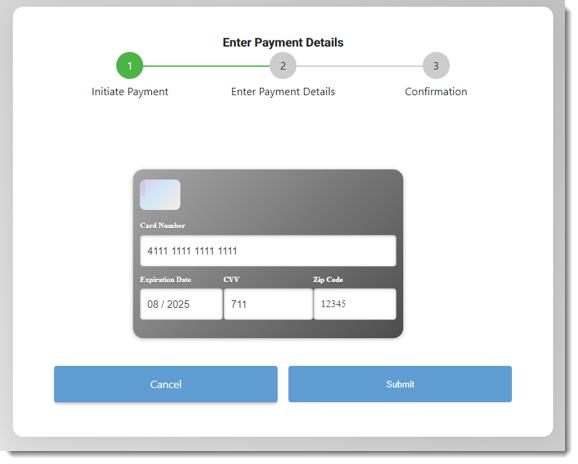
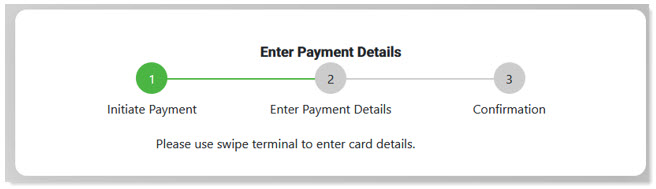
Swipe Terminal: Select Wired or Wireless for the swipe terminal. A screen displays prompting the use of the terminal to complete the sale. The corresponding terminal also prompts for input. Site must be set up for swipe terminals to use this option.
Click Submit after completing the selected payment method. A payment confirmation screen displays. The confirmation page identifies if the sale was approved, declined, or errored. It also gives the option to print a receipt. If the submitter is set up for Receipt Delivery, a preference drop-down field is visible. Enter the desired delivery type with the associated email or text number and click Send Receipt. See View Receipt Delivery for more information on electronic receipts. If the site is set up for Surcharges, this also displays here.
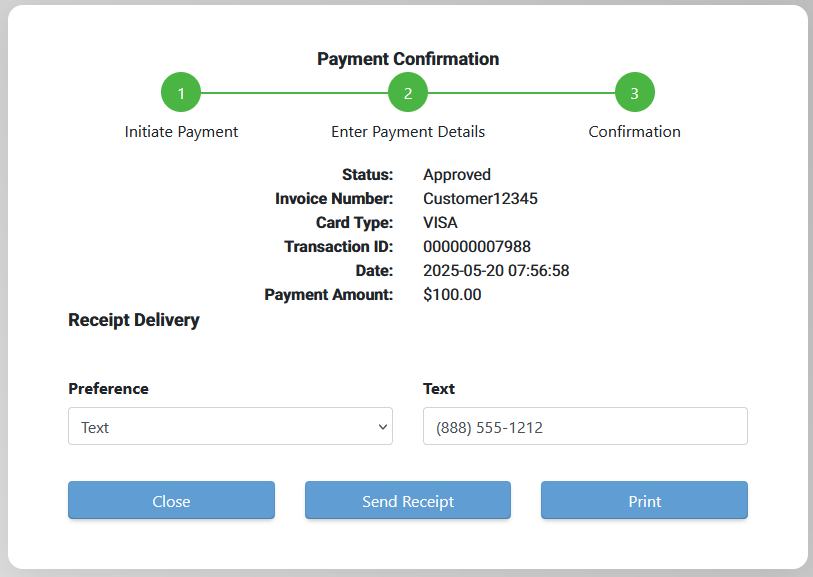
Click Print to print a receipt or click Close to close the browser window and return to eMEDIX Online.
The transaction is available on the Payment Transactions search grid.

eMEDIX Online | Published: 2026.02.12 | ©copyright 2026 CompuGroup Medical, Inc. – All rights reserved.