
The Estimates screen includes the following:
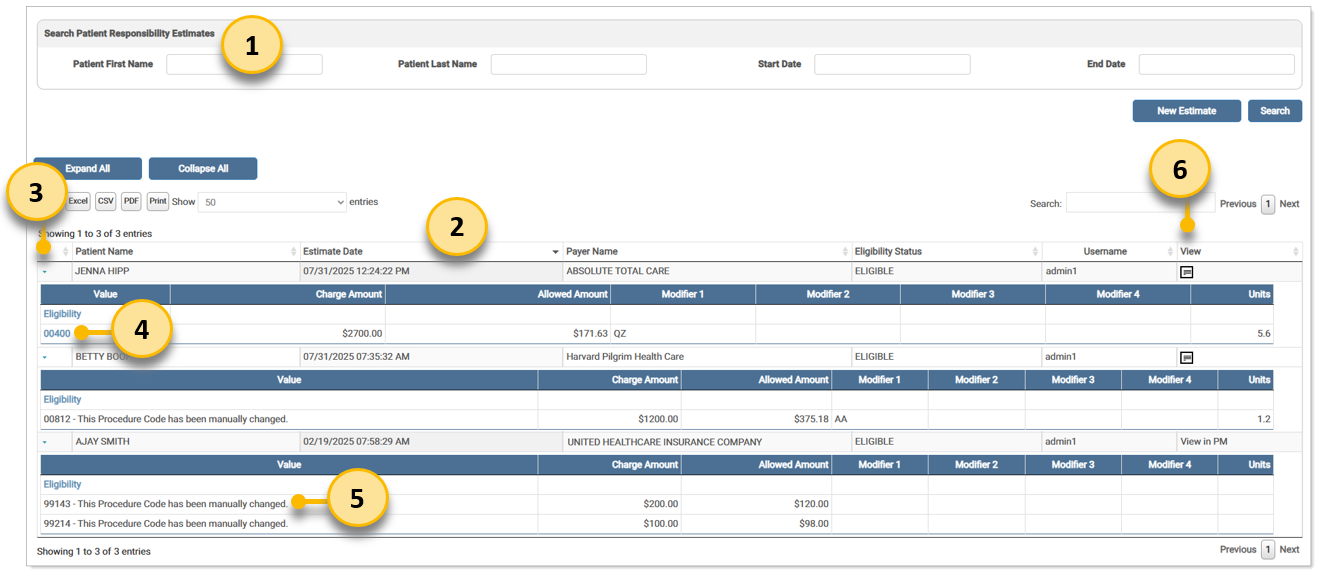
Users can search for a patient by First Name, Last Name, and/or Date Range.
The search grid includes Patient Name, Estimate Date, Payer Name, Eligibility Status, Username, and an icon for the Estimate PDF.
An expandable arrow allows for quickly identifying eligibility information, including links to the Eligibility and to any remit that matches the procedure code(s).
The Value column includes a link to the Eligibility, as well as any Procedure Codes associated with it. If the procedure code is matched to a remit, it displays as a link.
If a procedure code associated with the estimate is manually changed by a user, it no longer matches a remit and the link is disabled. A message displays indicating the procedure code has been manually changed.
The Estimate View icon allows the user to open a PDF of the patient responsibility estimate. The PDF is editable, allowing the user to adjust values if needed.
By default, the grid displays the last 50 estimates, with the most recent estimate appearing at the top. Users can search for additional estimates using the search option fields. Each estimate is marked with a status of Eligible, Not Eligible, or Incomplete, and the date of inquiry serves as the estimate date. While existing estimates cannot be edited, users can run a new estimate and make edits before finalizing it.
To search for an estimate:
Select Estimates from the Patient Responsibility Estimator drop-down menu under Real-Time Inquiries.
The Patient Responsibility Estimates search screen displays. The user can search for a patient by First Name, Last Name, and/or Date Range. Enter desired search criteria and click Search. The last 50 patient responsibility estimates are returned in the grid.
The search results display in the grid. The last 50 patient responsibility estimates are returned in the grid.
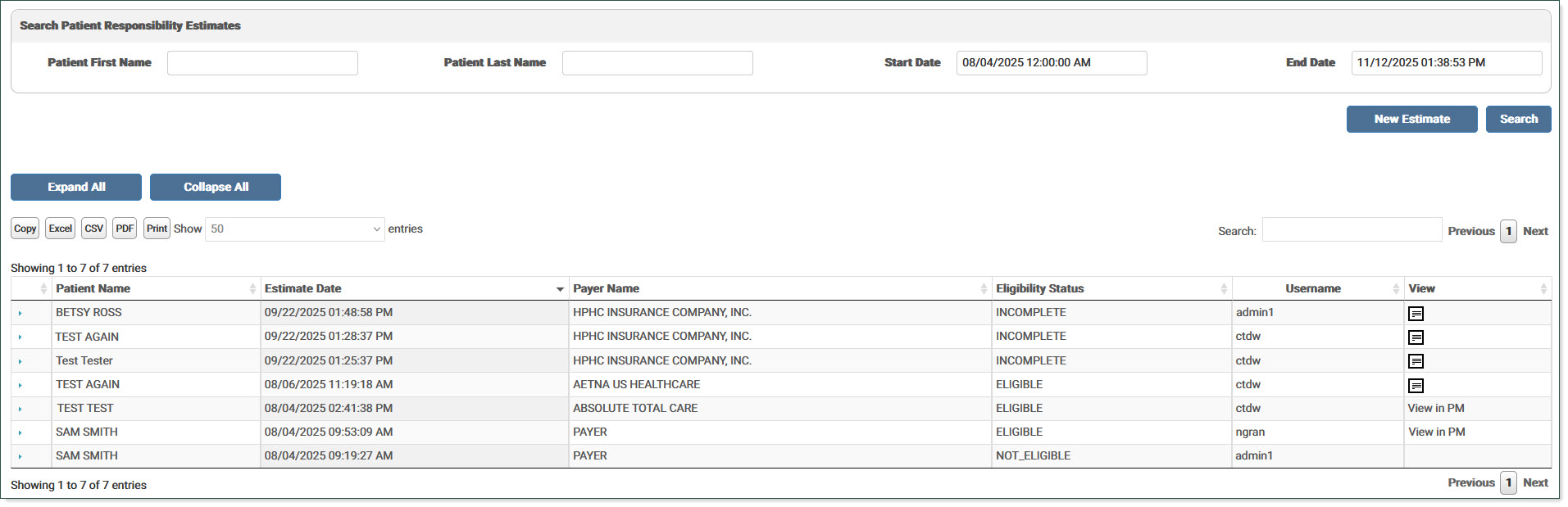
Click the Note icon to view or download the estimate as a PDF. If the Patient Responsibility Estimate is requested via API instead of Online, the PDF does not display in the grid. When this occurs, the View column displays View in PM instead of the note icon to indicate there is a PDF available for the request.
Click New Estimate to begin an eligibility inquiry.
The Patient Responsibility Estimator (PRE) Estimates screen includes an expandable arrow for quickly identifying eligibility information. By clicking the arrow, users can access links to the Eligibility and to any remit that matches the procedure code(s). If a procedure code associated with the estimate is manually changed by a user, it will no longer match an existing remit from a payer, and therefore, no link will be provided. In this case, a message displays stating This Procedure Code has been manually changed.

Click the arrow to expand the details for the estimate.
The Value column includes the link to the Eligibility, as well as any Procedure Codes associated with it. If the procedure code is matched to a remit, it displays as a link.
If a procedure code associated with the estimate is manually changed by a user, it no longer matches a remit and the link is disabled. A message displays indicating the procedure code has been manually changed.
PDF Example:
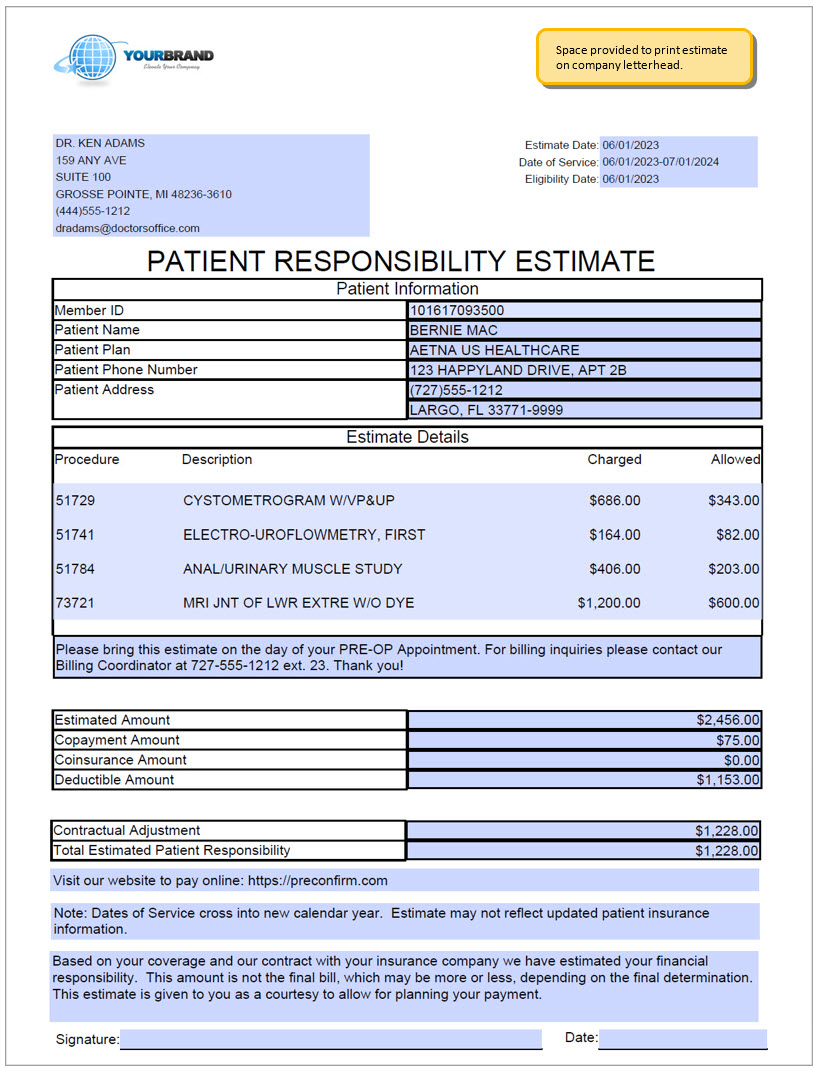
Physician Information: Physician name, address, phone number, and email as entered in the Physicians section of the Provider Setup.
Estimate Date: Date the estimate was created. Defaults to today's date.
Date of Service: Dates of Service selected on the New Estimate screen. If left blank, the default is today's date.
Eligibility Date: Date the Estimate eligibility request was run.
Member ID: Member ID used to run an Eligibility on the New Estimate screen.
Patient Name: Patient First and Last Name fields used to run an Eligibility on the New Estimate screen.
Patient Plan: Eligibility payer selected on the New Estimate screen. If Eligibility is skipped, it is taken from the Payer selected on the Payer and Procedure Selection screen.
Patient Phone Number/Address: These fields are not auto-populated, but are available for the user to enter the patient phone number and address as needed.
Description: Description from the Payer and Procedure Selection screen. This field includes a friendly description followed by a blank line and then the list of procedure codes and descriptions. Up to nine (9) procedure codes may be included in the Description field, depending on the length of the print friendly description.
Estimated Amount: Calculated during the Estimate Calculation steps. Input values come from the Payer and Procedure selection screen, which draws from the information backloaded from the account's remittances and/or setup by the account under Payer Setup.
Copayment: Calculated during the Estimate Calculation steps. *
Coinsurance: Coinsurance from the New Estimate screen after running an eligibility. This should typically be selected from the eligibility response. *
Deductible: Calculated during the Estimate Calculation steps.
Contractual Adjustment: Calculated during the Estimate Calculation steps. Input values come from the Payer and Procedure selection screen, which draws from the information backloaded from the account's remittances and/or setup by the account under Payer Setup.
Total Estimated Patient Responsibility: Calculated during the Estimate Calculation steps.
Website: Website URL field on the Provider Setup screen.
Note: This note displays if there is an issue with the dates of service crossing years with the current year (Example: If an estimate is run in December, but the DOS is in January, the current benefits may not be valid for services rendered in the next calendar year).
Disclaimer: Patient Message field on the Provider Setup screen.
Signature and Date: Allows a patient to sign and date the estimate after receiving it.
* NOTE: Values can be adjusted on the Payer and Procedure Selection screen, in which case the adjusted value is used.
eMEDIX Online | Published: 2026.02.12 | ©copyright 2026 CompuGroup Medical, Inc. – All rights reserved.