
The New Estimate feature allows a user in a provider's office to know if a patient is eligible for insurance in order to inform them of their out-of-pocket cost. Use this screen to view benefit information such as deductibles, coinsurance, out-of-pocket maximums, and copayments from an eligibility response.
To search for an estimate:
Select Estimates from the Patient Responsibility Estimator drop-down menu under Real-Time Inquiries. The Estimates screen displays.
Click New Estimate. The Patient Eligibility Inquiry screen displays.
Select the payer for eligibility inquiry from the Payer drop-down menu. Enter the patient information for payer eligibility. Select the Benefit Service Type from the drop-down menu. Payer, Member ID, Patient First and Last Name, Gender, and DOB are required fields. NOTE: Users may click Skip to move to the next screen without entering inquiry information. Patient First and Last Name are still required fields.The eligibility fields can be manually entered on the next screen.
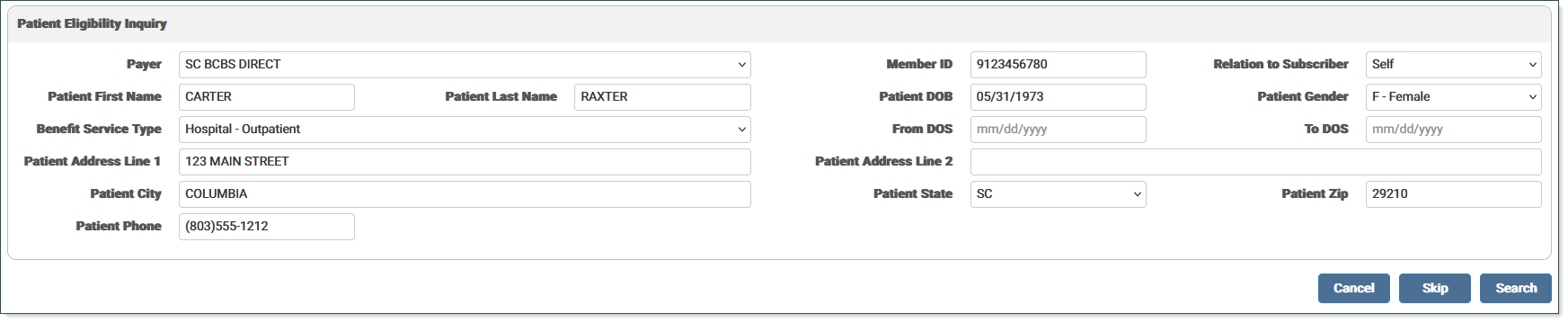
Click Search to run an eligibility request. A message displays stating the system is retrieving the eligibility information. If the inquiry is not completed properly, a message displays stating no response is available at this time.
The Eligibility information screen displays. If the patient is eligible, the Eligibility Status displays in blue. If the patient is ineligible, invalid, or incomplete, the status displays in red.
The Eligibility Response Details section lists the response details for the inquiry.

For Eligible patients, the Eligibility Coverage Details section lists all available coverage details for the inquiry, such as copayment, coinsurance, deductibles, and out-of-pocket benefit information. This section allows the user to select appropriate copay and coinsurance values to apply. Deductibles and Out-of-Pocket information is split by Individual (IND) and Family (FAM) benefits, and includes a radio button on rows that list the Remaining values. Other rows are informational and display N/A in the Select column. Radio buttons are available on all rows for copayments and coinsurance. Select the radio button for the desired coverage in each section.
EXAMPLE:
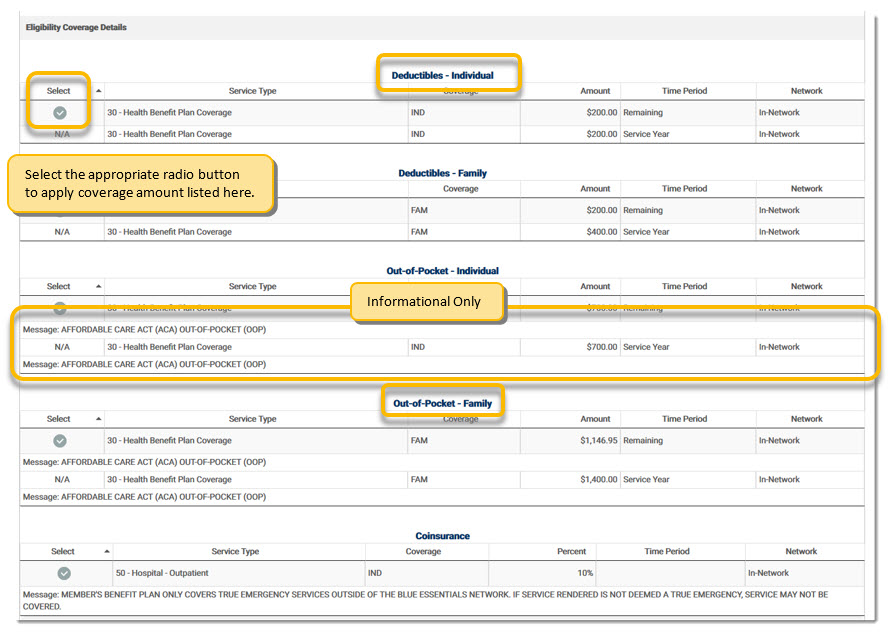
In addition to items that can be selected, this screen may display supplementary information related to copayments, coinsurance, deductibles, and out-of-pocket values. This data includes any applicable messages, dates (such as benefit dates), plan descriptions, additional time periods (Calendar Year, Lifetime), and any other pertinent information which may help a user determine the best values to use on the Patient Responsibility Estimate.
The fields in the Selected Coverages section populate based on the selections made in the Eligibility Coverage Details section. Users may enter values in these fields or adjust the auto-populated values.
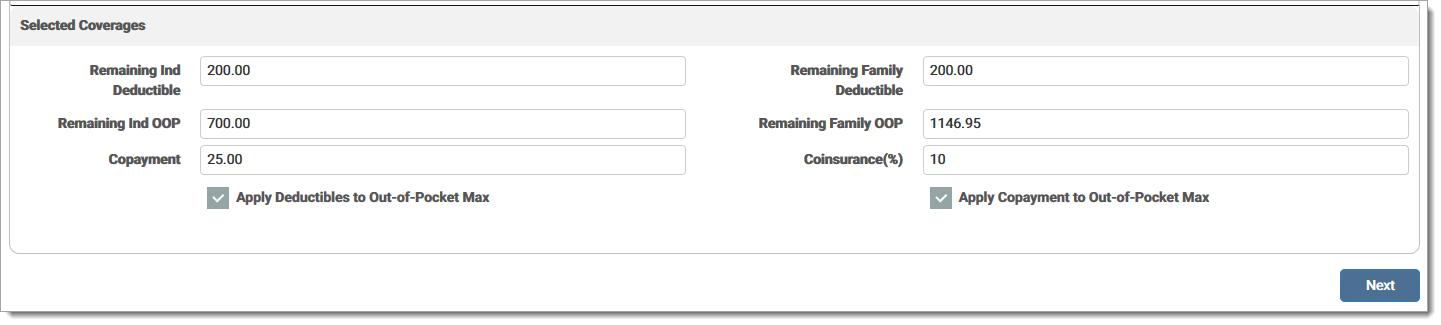
Click Next to view the Payer and Procedure Selection screen.
If the user completed the Eligibility response in the previous screen, that payer's information is used for the estimate. If there is more than one matched, a selection box displays to the right of the section, allowing the user to select a different payer. If the user skipped the Eligibility response screen, select a Payer from the drop-down menu for the estimation.
The information from the Eligibility screen is used to populate the Eligibility Coverage Details fields. If the user skipped the previous screen, this section is blank. Users may enter values in these fields or adjust the auto-populated values. Note: If the coinsurance is left blank on the Estimate, it is assumed that the coinsurance is 0.00.
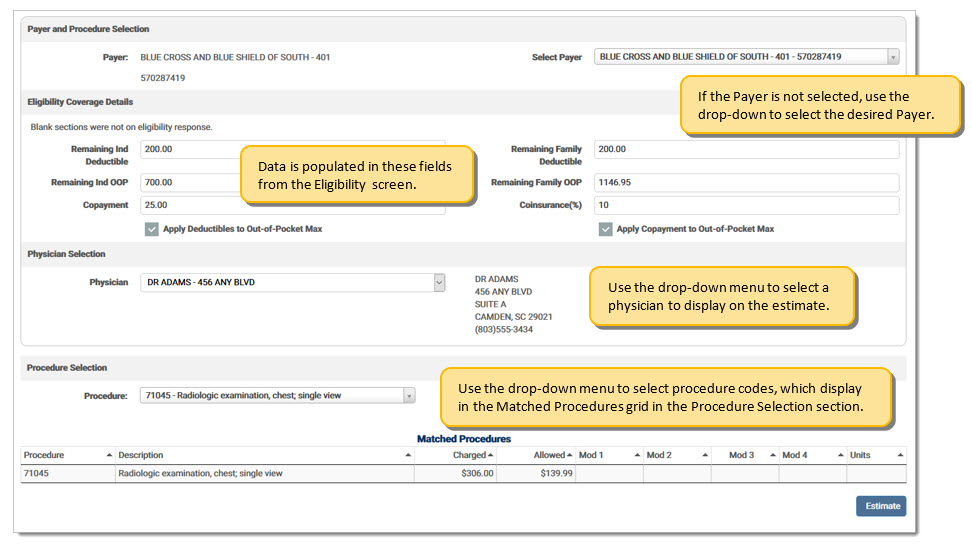
The Physician Selection section allows the user to select the physician information to display on the estimate. Physicians entered in the Provider Setup screen display in the drop-down menu. Select a physician and their information populates on the screen next to the menu.

The Procedure Selection section allows the user to select the pre-loaded procedure details from their remittance backload and/or Payer Setup screen. Users may search for a procedure code from the Procedure drop-down menu. This information is linked to the selected payer and amounts are specific to that payer. Click the drop-down arrow to enter the desired procedure code. Enter one (1) or more characters to list the available procedures code for the selected payer. If the code is set up for the payer, the user can select it and it displays in a grid along with the possible values.
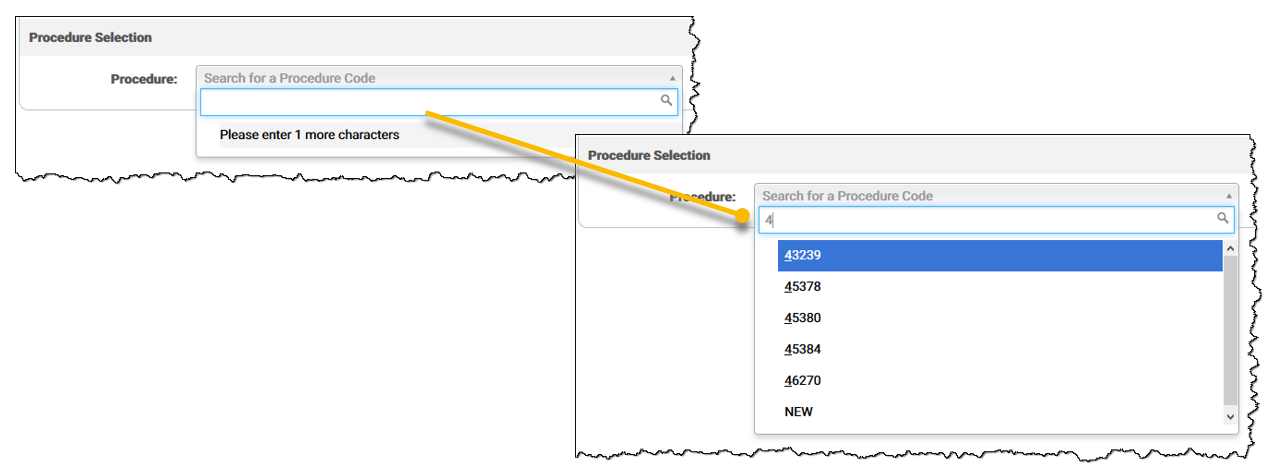
If the procedure code is not listed, click New to add a blank line after the Matched Procedures grid with the value entered as the Procedure.

Once selected, the matching procedure code information populates in the Matched Procedures grid. Any information associated with the selected procedure code displays (Step 1). Click the procedure code from the grid and a row is created below the grid (Step 2). This includes Procedure Code, Amount Charged, Allowed Amount, Modifiers, and Units. Users may continue to add all needed procedure codes. Each time a row is selected, it is added to the estimate and displays above the Description. Once completed, all procedure code information is used for the estimation. The user can manually adjust all values on the Procedure lines. Only Procedure, Charged, and Allowed Amounts are required. Click the red X to delete a row.
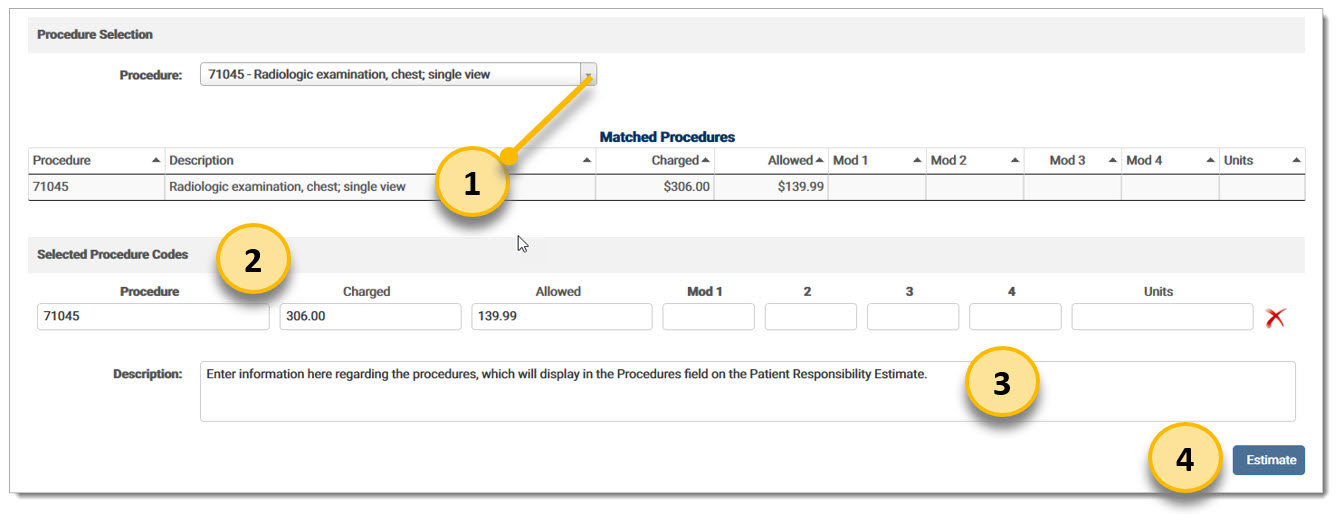
The Description field is used to provide the patient with a friendly description of what the estimate is covering (Step 3). This description displays on the Estimate PDF provided to the patient at the end of the process.
After all fields have been completed appropriately, click Estimate to generate the Estimate PDF (Step 4). The Patient Responsibility Estimate screen displays and the PDF is available in the grid. Click the note icon to view the PDF.

The Eligibility Coverage Details fields are defined as the following:
Remaining Ind Deductible: The remaining deductible for the patient (individual).
Remaining Family Deductible: The remaining deductible for the family, if the patient is part of a plan that covers more than one family member.
Remaining Ind OOP: The remaining out-of-pocket amount that must be paid by the patient (individual) for the benefit period.
Remaining Family OOP: The remaining out-of-pocket amount for the family for the benefit period, if the patient is part of a plan that covers more than on family member.
For the above items, the smaller amount of each category is used in the calculations. For example, if the patient has an individual deductible of $500.00, but the family only has $250.00 remaining deductible; the patient is only responsible for the $250.00. The same calculation applies for Remaining Out-of-Pocket values.
Copayment: Fixed amount paid for a covered healthcare service.
Coinsurance: A percentage of cost paid for a covered healthcare service after the plan's deductible is met. This value is expressed as a whole number. 20 is equal to 20% copayment.
Apply Deductibles to Out-of-Pocket Max: If this check box is marked, the deductible is included in the Out-of-Pocket maximum. If the patient has already met their Out-of-Pocket maximum for the benefit period, they will not owe a copayment. If the check box is not marked, the copayment must be paid regardless of whether or not the Out-of-Pocket maximum has been reached. In some cases, the eligibility response message in the Deductibles section of the Eligibility Coverage Details indicates whether they are included in the Out-of-Pocket maximum.
Apply Copayment to Out-of-Pocket Max: If this check box is marked, the copayment is included in the Out-of-Pocket maximum. If the patient has already met their Out-of-Pocket maximum for the benefit period, they will not owe any remaining deductible. If the check box is not marked, the deductible must be paid regardless of whether or not the Out-of-Pocket maximum has been reached. In some cases, the eligibility response message in the Copayment section of the Eligibility Coverage Details indicates whether they are included in the Out-of-Pocket maximum.
The Estimate options are defined below:
|
Option |
Definition |
|
Cancel |
Click to return to the Patient Responsibility Estimate screen. If the user has not yet completed an eligibility request, the button is disabled. |
|
Skip |
Click to move forward to the procedure information without entering any information on the New Estimate screen. |
|
Search |
Click to run an eligibility check and return information in the grid. If required fields are not completed, an error message displays indicating which fields to complete. |
eMEDIX Online | Published: 2026.02.12 | ©copyright 2026 CompuGroup Medical, Inc. – All rights reserved.