
The Responses section offers a clear view into claim processing and rejections. It includes the Top 10 Rejections chart, which breaks down each rejection with details like response message, detail message, error code, count, and total charges. Also included is the Top 10 Rejections by Category chart, which allows users to view rejections by category. Alongside these two charts, the Response Claim List provides a detailed rundown of claims, with each row displaying the TPID, patient control number, patient last and first name, trace number, and total charges. Clicking on a specific rejection or category in either chart instantly updates the claim list to show only the claims associated with that rejection/category, making it easier to focus on resolving specific issues.
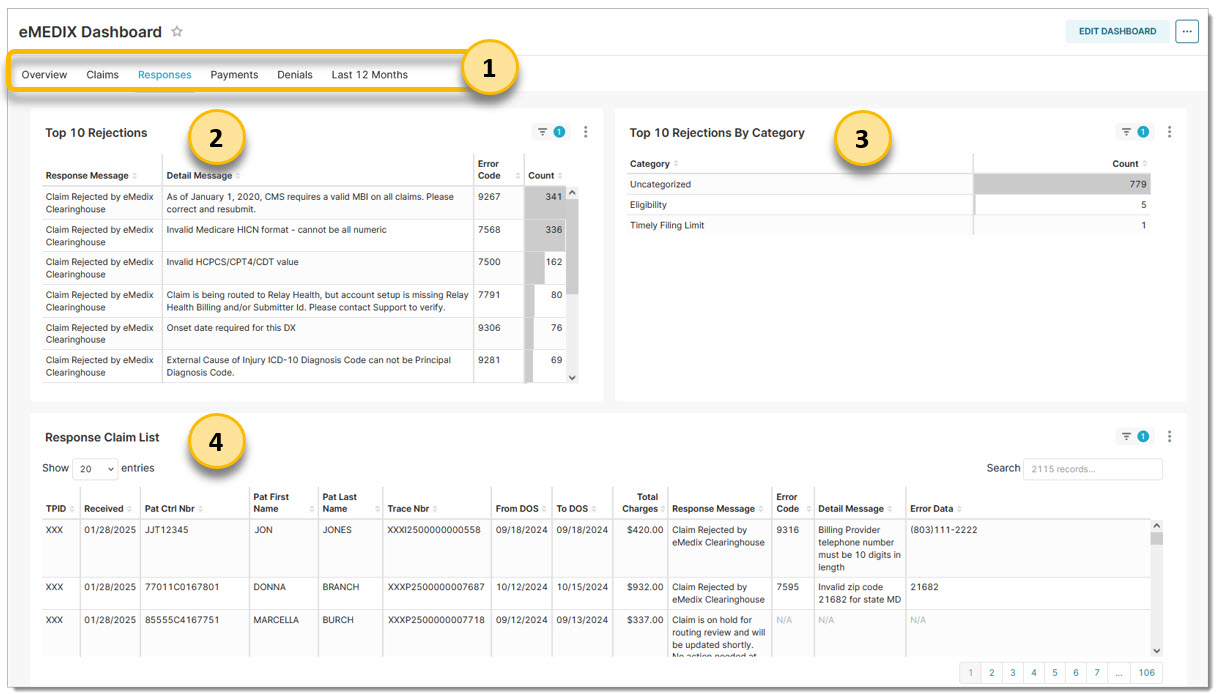
Click the Responses link to view this section. Select a Received Date and/or TPID(s) from the Filter drop-down options. Click Apply Filter to update the screen. A received date is required.
The Top 10 Rejections report can be filtered by Response Message, Detail Message, or Error Code. Clicking on any of these columns dynamically filters both the Top 10 Rejections by Category chart and the Response Claims List accordingly.
The Top 10 Rejections by Category chart can be filtered by Category type. Clicking on the Category column dynamically filters both the Top 10 Rejections chart and the Response Claims List accordingly.
The Response Claims List can be filtered by clicking on data in the columns. Clicking on any of the data dynamically filters both the charts. A message displays in the chart section if no results were returned for the query.
The following are the categories for the Top 10 Rejections by Category chart:
Rejections not fitting any of these categories will be marked as Uncategorized.
Note: The counts displayed in this chart represent unique claims, which may appear multiple times within and across categories. For instance, if a claim has three response messages, it may be listed three times under the same category (if all responses belong to the same category) or in different categories, depending on how the responses are categorized. The Response Claim List may show claims multiple times because it operates at the claim level.
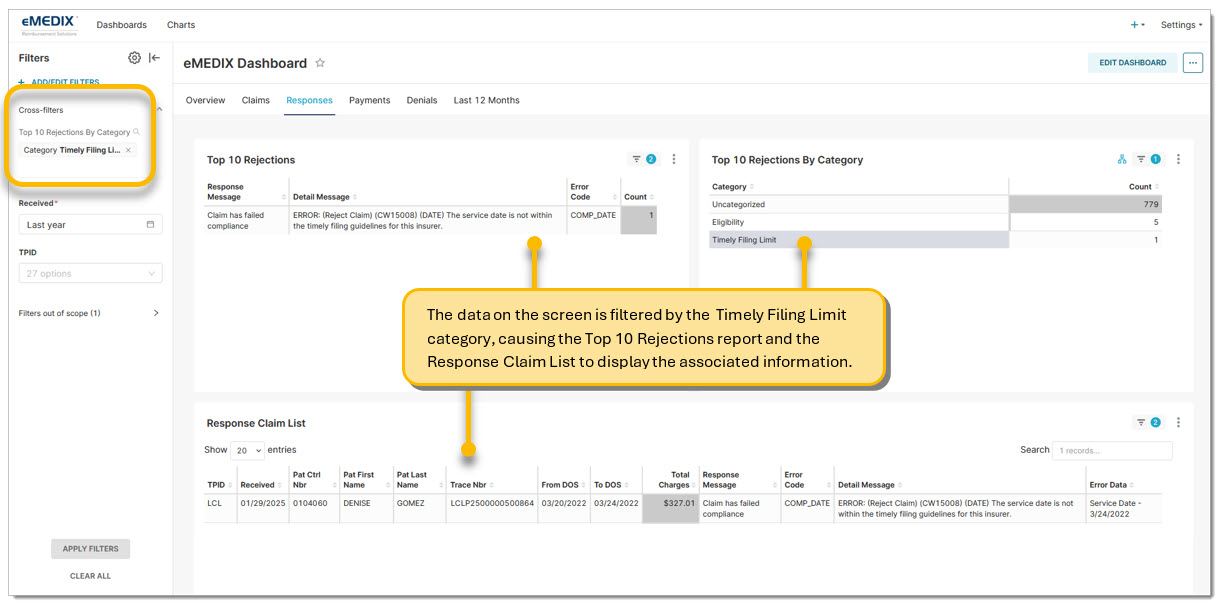
In the following example, the user clicked on the Timely Filing Limit category in the Top 10 Rejections by Category chart. As a result, the claim information in both the Top 10 Rejections chart and the Response Claim List updated based on the selected filter.
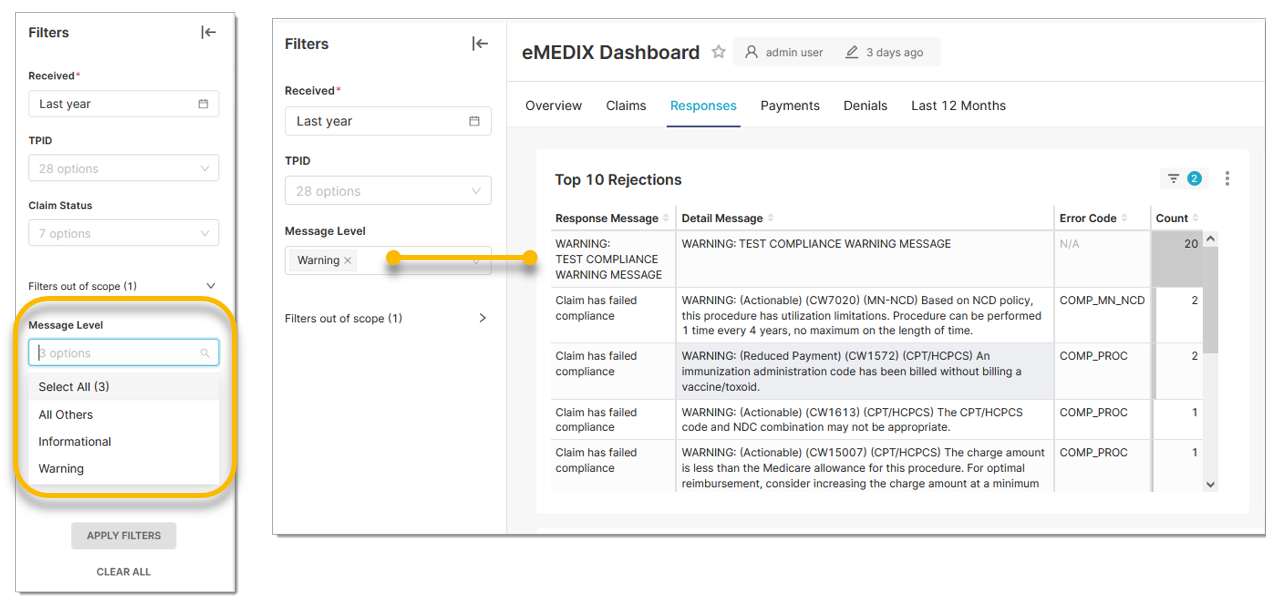
The Dashboard Responses section includes a Message Level Filter that allows users to categorize and filter responses by type: Informational, Warning, and All Others, to streamline claim analysis. Multiple options can be selected to update the Top 10 Rejections chart accordingly. Clicking on a specific rejection or category within the Responses charts will filter the lists to display only those claims associated with the selected Message Level(s).
eMEDIX Online | Published: 2026.04.09 | ©copyright 2026 CompuGroup Medical, Inc. – All rights reserved.