
The Patient Responsibility Estimator Payer Setup screen allows the provider to validate the data eMEDIX is using for estimation. To ensure estimates are as accurate as possible, changes can be made to the payer payment records in this screen.
The data returned comes from actual payments. Users are able to:
Delete any records that are not needed.
Change/update any records that are incorrect.
Add missing records.
To view or edit a payer record:
Select Payer Setup from the Patient Responsibility Estimator drop-down menu under Real-Time Inquiries.
The Payer Setup search screen displays. The user can search for a payer by Payer Name, Payer Code, Tax ID, State, and/or Procedure Code. Enter desired search criteria and click Search.
The search results display in the grid. Multiple records may be returned. The data shown here is historical information based on the selected payer.
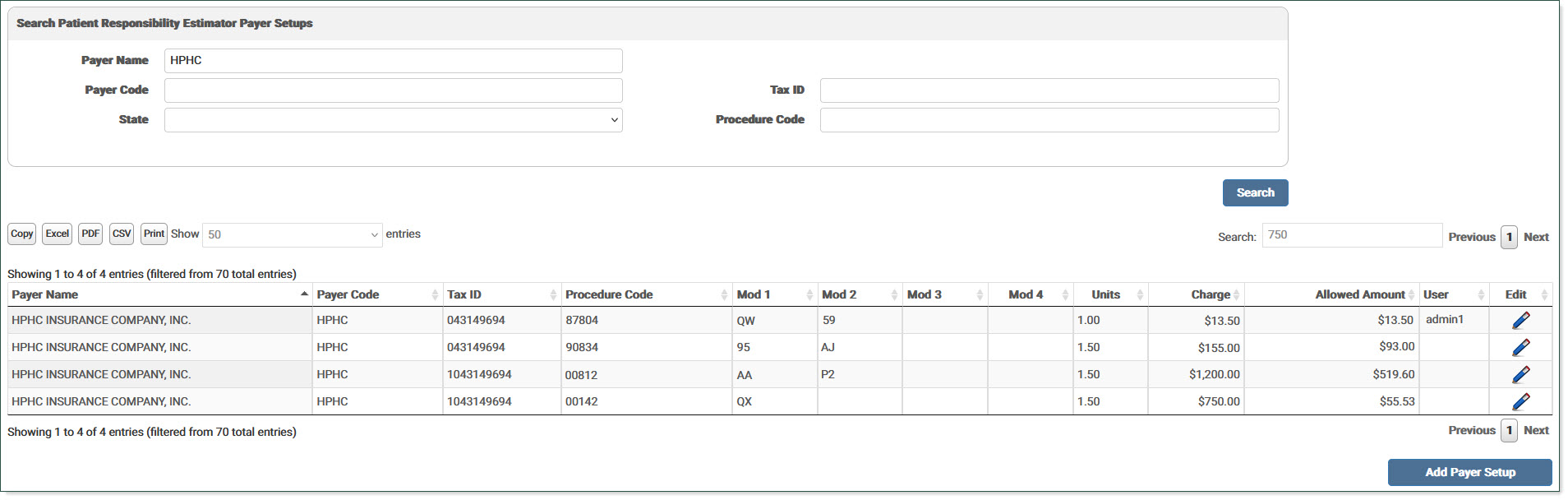
Click the pencil icon to view/edit the Payer Setup Details. Make changes as needed to the record and click Save.
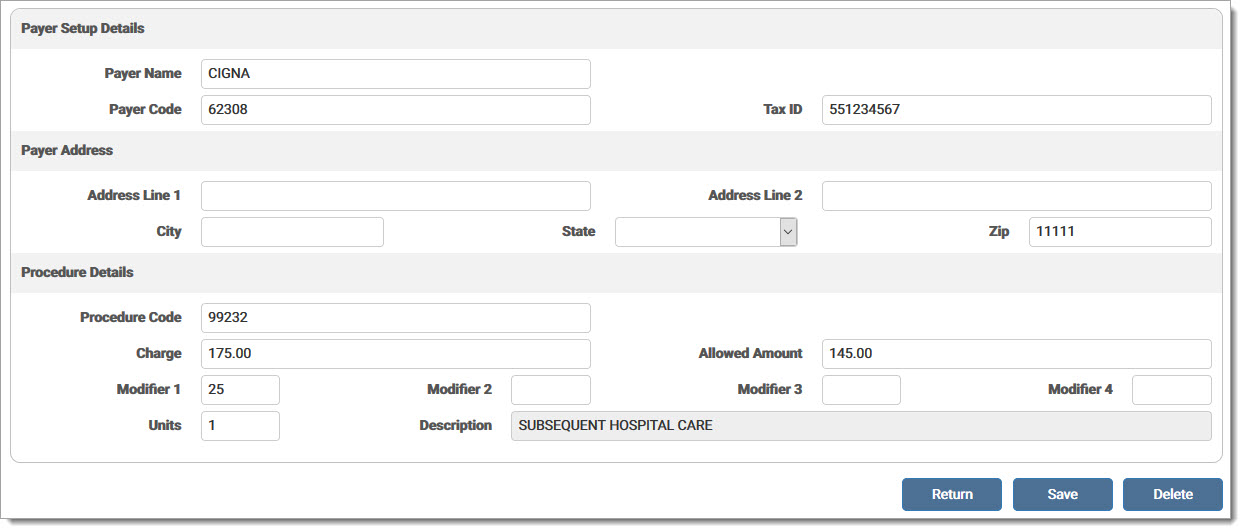
Click Delete to delete records not needed for calculation. Click Return to return to the Payer Setup screen.
From the Payer Setup screen, click Add Payer Setup to add a new payer record. A blank Payer Setup Details screen displays. For a new record, the user must enter Payer Name, Procedure Code, Charge, and Allowed Amount. Combinations of Payer Name, Payer Code, Procedure Codes, Modifiers, Unit, Charges, and Payment are unique. Payer Address is not required.
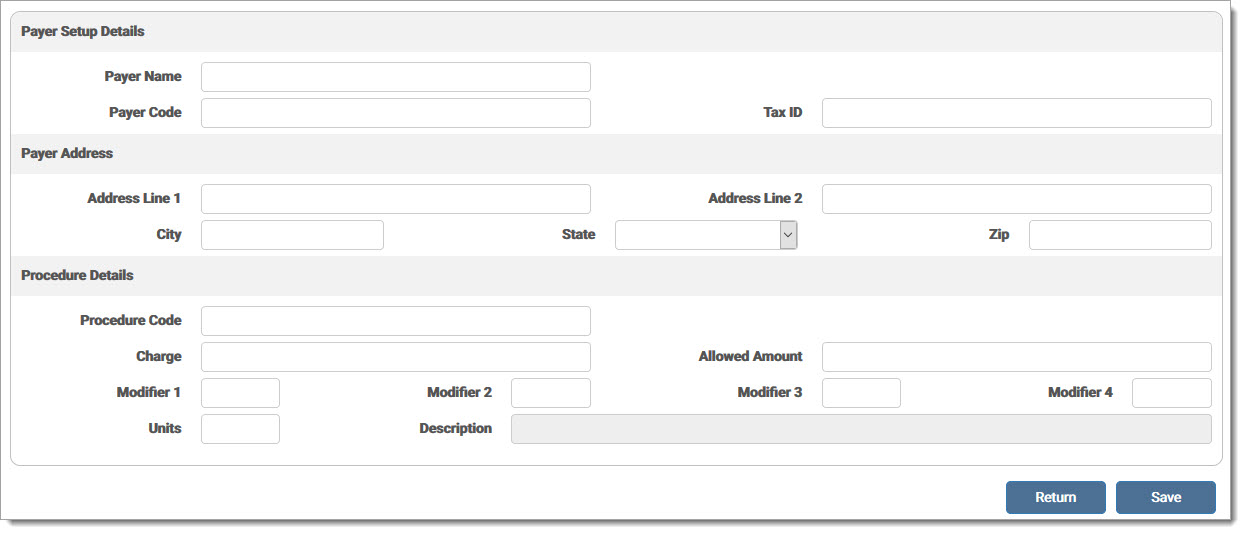
Entering a valid Procedure Code automatically populates the procedure description in the Description field. This field is disabled, on-editable, and limited to 50 characters. Enter the procedure code and tab to the next field to view the description.

Once all information has been entered, click Save.
A record is added to the Audit Log for the activity.
eMEDIX Online | Published: 2026.02.12 | ©copyright 2026 CompuGroup Medical, Inc. – All rights reserved.