
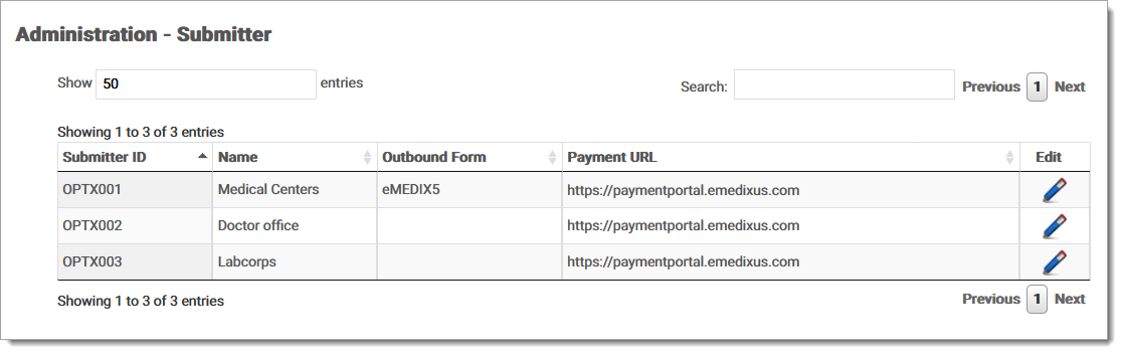
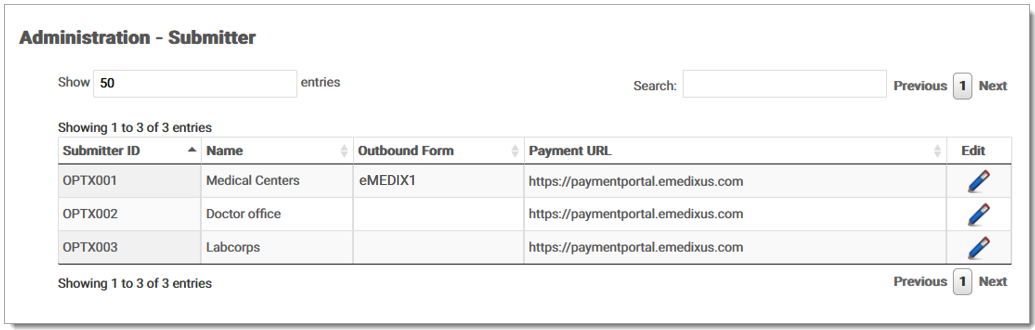
The Submitter feature enhances user functionality by allowing users with the appropriate permissions to edit submitter names and payment URL. A grid displays the logged-in trading partner's current Submitter IDs, Submitter Names, and Payment URLs, along with an edit option.
The Submitter feature enhances user functionality by enabling users with the appropriate permissions to edit submitter details, manage eStatement Campaign Credentials, select outbound forms and statement colors, and manage payment URLs.
Users can:
This streamlined process ensures that all necessary details are easily accessible and modifiable.
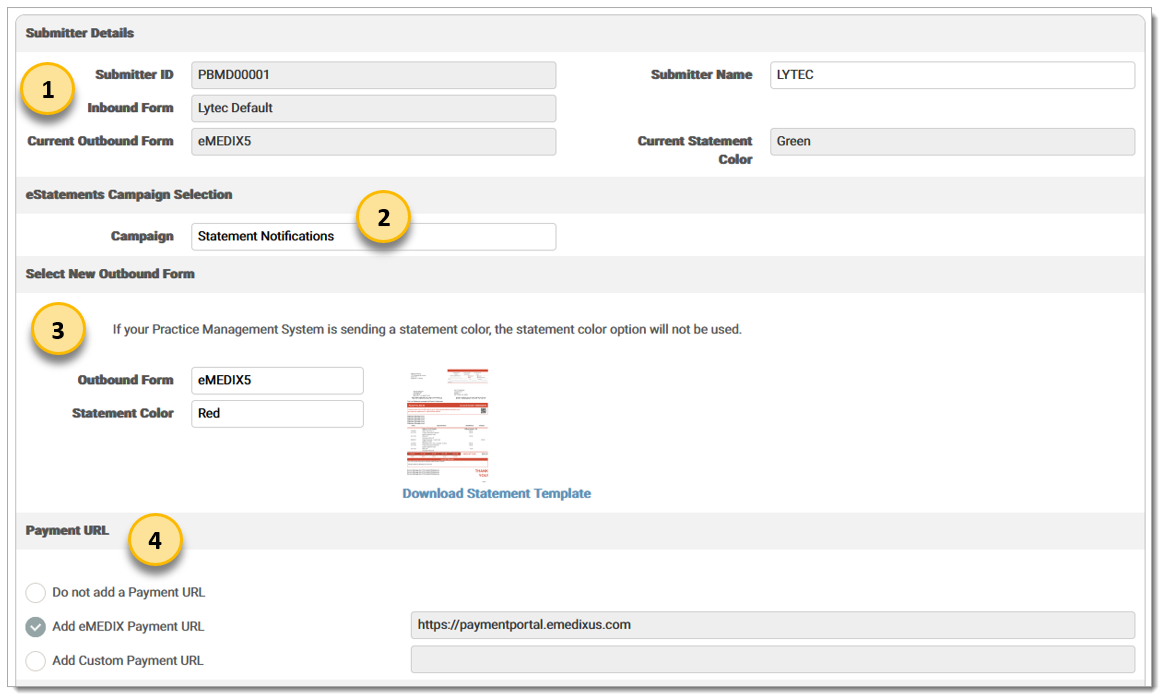
Submitter Details
Submitter ID: Submitter ID is a disabled field
Submitter Name: Fully editable field
Inbound Form: Disabled field that indicates the form type used for eStatements. If the Submitter is a Legacy account (CGM webPRACTICE, CGM ENTERPRISE PM, CGM CLINICAL, CGM DAQbilling), the Inbound Form name will include 'Legacy' (e.g. webPRACTICE Default Legacy).
Current Outbound Form: Disabled field that indicates the current outbound form used for statements.
Current Statement Color: Disabled field that indicates the current statement color in use.
eStatements Campaign Selection
Campaign: Drop-down menu that allows users with eStatement permission to select a campaign. Campaigns represent the notifications sent for eStatements and names vary by submitter.
Select New Outbound Form
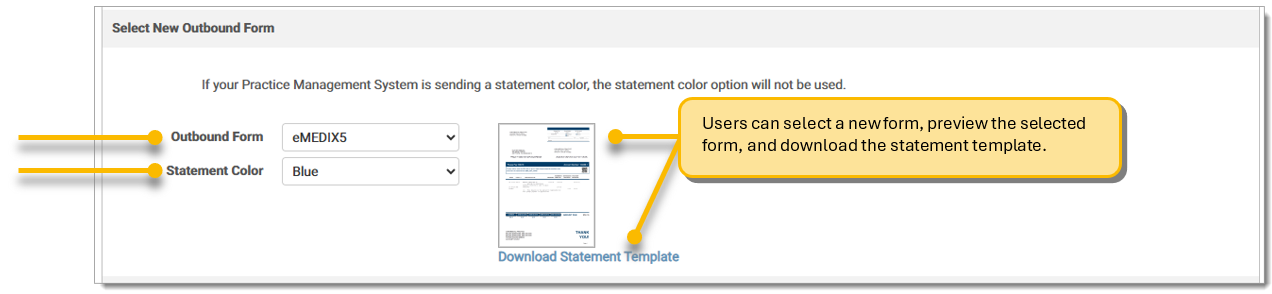
Outbound Form: Select an alternative statement design from the drop-down menu.
Statement Color: Drop-down menu that allows users to select the desired statement color, with Blue set as the default color.
Your Preview Here: Image preview of selected form. Click preview thumbnail to open the selected statement template in a new window.
Download Statement Template: Download the selected statement example as a PDF.
Payment URL
Do not add a Payment URL
Add eMEDIX Payment URL
Add Custom Payment URL (limited to 70 characters)
Permission scenarios for Payment Portal URL:
Note: The default setting for Payment Portal URL for a user with Payment Portal (CGM Pay) permissions is Add eMEDIX Payment URL. If a customer with Payment Portal (CGM Pay) permissions sends a statement with a custom URL, the system defaults to the eMEDIX URL unless the Custom Payment URL option is selected by the user.
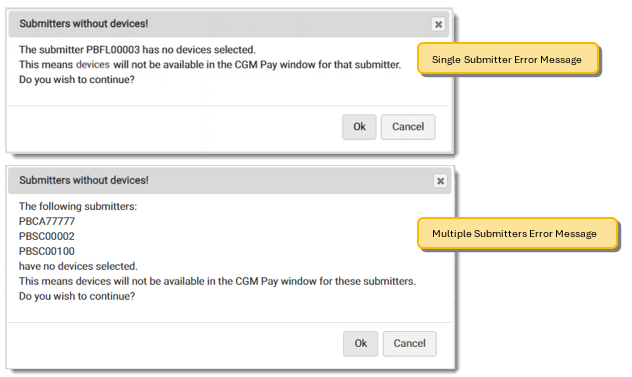
To properly use the CGM Pay option, users must set up devices in Payment Processor Setup. When a user clicks Save on the Submitter configuration screen without having devices set up, an error message displays indicating that no devices are selected and therefore will not be available in the CGM Pay window for that submitter. For single submitters, the error message indicates the specific submitter number. For multiples submitters, the message will list all included submitters. To proceed without setting up devices for the specified submitters, click OK. Otherwise, please set up the devices for the submitters in the Payment Processor Setup screen.
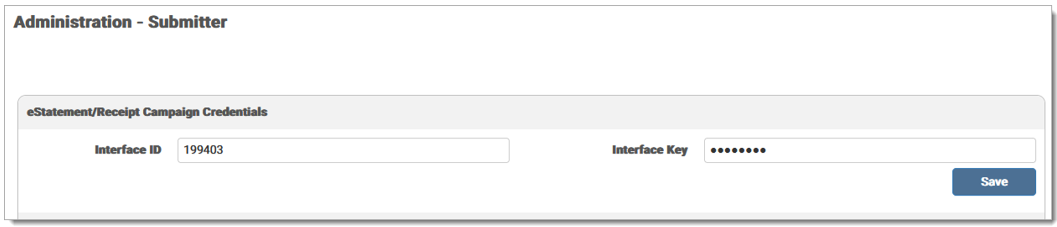
To make changes to a submitter, select Setup from the Administration drop-down menu and then select Submitter.
When a site is contracted for eStatements, the eStatement/Receipt Campaign Credentials section appears on the Submitter screen (it is disabled otherwise). This section stores the necessary credentials for eStatements. The Interface ID and Interface Key are required to retrieve campaign information, allowing users to select a campaign from the drop-down menu on the Submitter Details screen. The Interface Key data is treated like a password, with its characters hidden by asterisks. Activity in this section is recorded in the Audit Log; however, the Interface Key details will not be displayed in the log.
The available submitter information for the currently logged in TPID displays in the grid. Click the pencil icon to view the Submitter Details screen.
The details screen contains sections for Submitter Details, eStatements Campaign Selection (for those with eStatement permission), Select New Outbound Form and Statement Color, and Payment URL options. Options that are disabled are unavailable for the selected submitter.
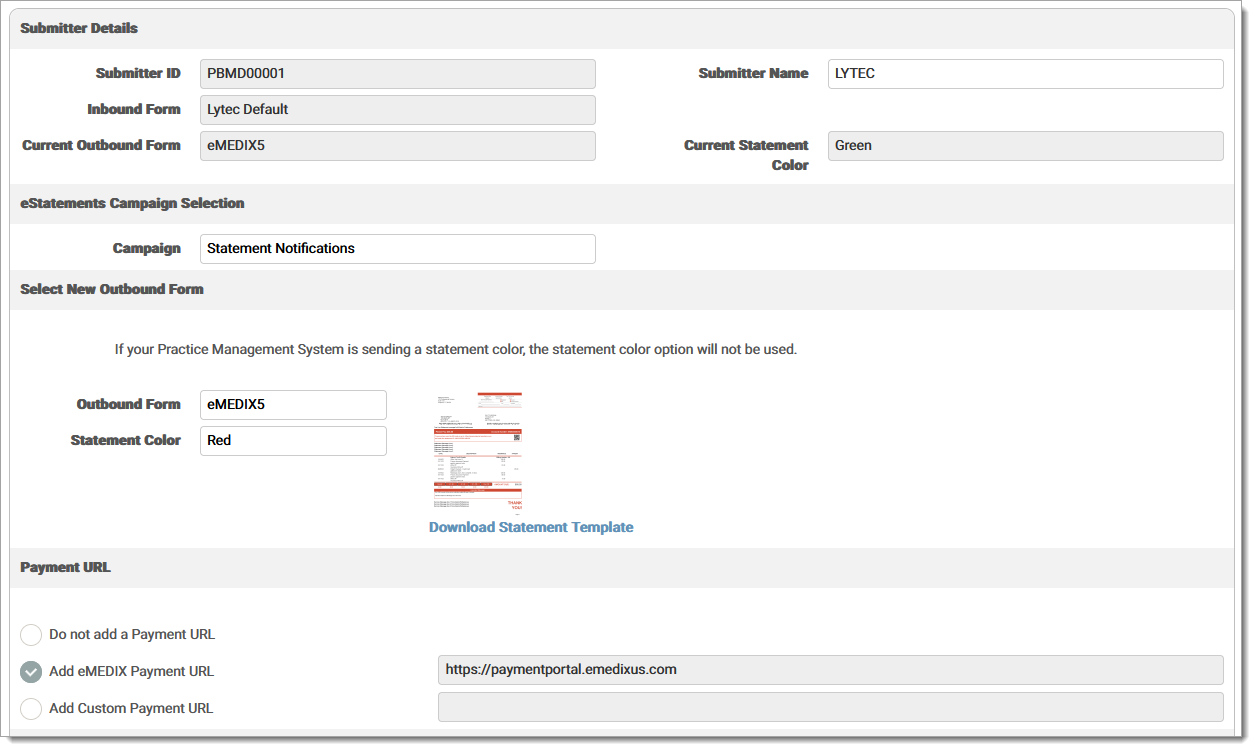
The Submitter Details section contains ready-only fields for the Submitter ID, Inbound Form, Current Outbound Form, and Current Statement Color. Note: Legacy accounts (CGM webPRACTICE, CGM ENTERPRISE PM, CGM CLINICAL, CGM DAQbilling) include Legacy in the Inbound Form name.
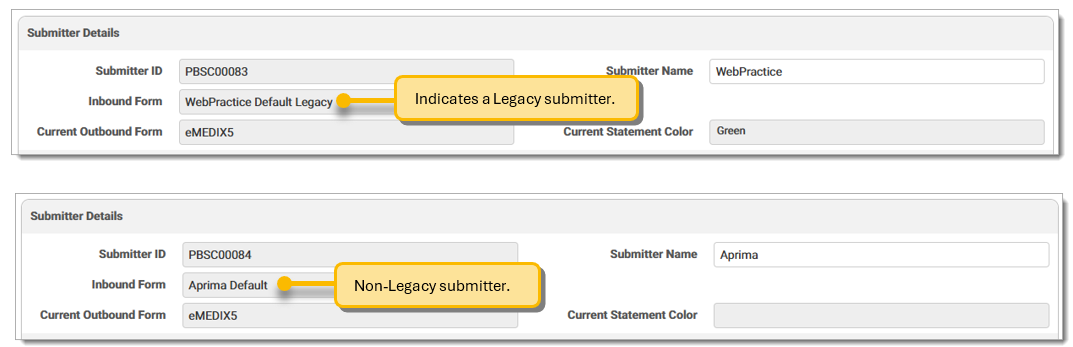
The eStatements Campaign Selection section is only visible for sites that are contracted for eStatements. A campaign represents the notification sent for eStatements, which includes the text communicated to patients via email or text. Users with eStatements permission can select a campaign from the drop-down menu. Campaign options will vary by submitter.
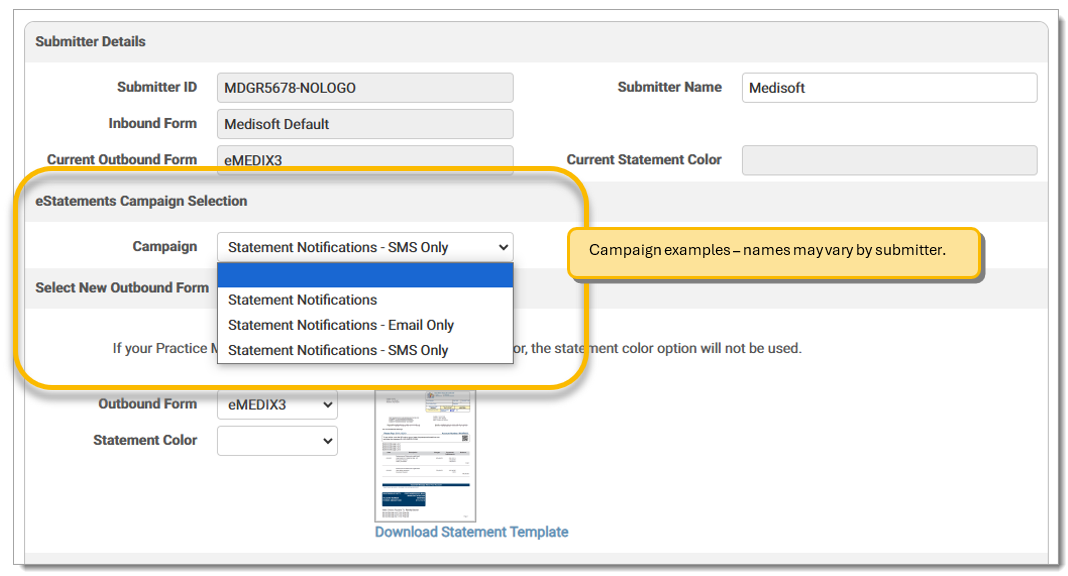
Inactive campaigns will be removed from the drop-down menu. If a user accessed the Submitter Details screen with a selected campaign that is inactive, an error message displays indicating the selected campaign is no longer available, prompting the user to choose a different campaign to continue.

Users can select an alternative statement design and/or color for the Outbound Form. The outbound forms are specific to each Practice Management system, meaning the options will vary for each PM. The Outbound Form drop-down menu allows users to select a new outbound form. The Statement Color drop-down menu allows users to select a statement color. After making a selection, a preview image displays, and users can click the thumbnail to view a larger image in a new window. The Download Statement Template link is used to download the statement example as a PDF. Click Save to save the new form selection. Note: If your practice management system is sending a statement color, the statement color option will not be used.
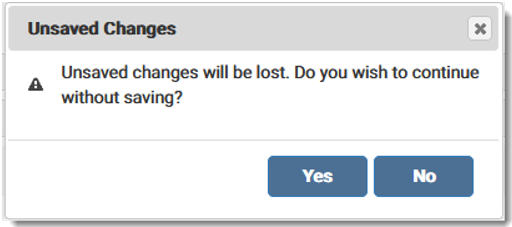
If the Outbound Form selection is modified and the user tries to exit without saving, a message warns that unsaved changes will be lost. Click No and then Save to preserve changes. Yes will return the user to the details screen.
To update the Payment URL options for the submitter, mark the Do not add a Payment URL radio button to select that option, or mark Add Custom Payment URL and enter the custom URL in the field (limited to 70 characters). Note: The Add eMEDIX URL option is disabled if the site does not have Payment Portal (CGM Pay) permissions.

If the user has appropriate permissions, the Add eMEDIX Payment URL option is available. Mark the radio button to select the eMEDIX option. Note: When your account is set up for Payment Portal (CGM Pay), the Add eMEDIX Payment Portal URL option is already selected. If you are not using Online Bill Pay, please change the Payment URL setting to Do not add a Payment URL.

For Legacy sites (CGM webPRACTICE, CGM ENTERPRISE PM, CGM CLINICAL, CGM DAQbilling), if Statement IDs are not sent and the account has Payment Portal permissions, eMEDIX will not add the eMEDIX Payment URL. The Statement ID must be present in the file for the Payment URL to be added. A message displays on the screen, and the option will be disabled if the Statement ID is missing.

Once all changes have been made, click Save. A success message displays if the submitter saved successfully.

The changes display in the Submitter grid.
A record is added to the Audit Log for the activity.
eMEDIX Online | Published: 2026.02.12 | ©copyright 2026 CompuGroup Medical, Inc. – All rights reserved.