
The Patient Payment Portal screen allows users with the eMEDIXOnline Site Admin permissions to manage payment options for Patient Financing or Payment Plan. For a Provider Payment Plan, users enter the plan options and then create override exceptions by submitter. Users can suspend an override by unmarking the Accepts Payment Plan check box or adding an expiration date to expire it. This setup is only available if the PM has indicated that they support payment plans.
To manage payment options:
Select Patient Payment Portal from the Setup menu under the Administration drop-down menu.

Select the Payment Plan Type from the drop-down menu. Options will vary based on the account merchant type. The Override Default by Submitters section only displays when Provider Payment Plan is selected. It will not display if Patient Financing is selected. 
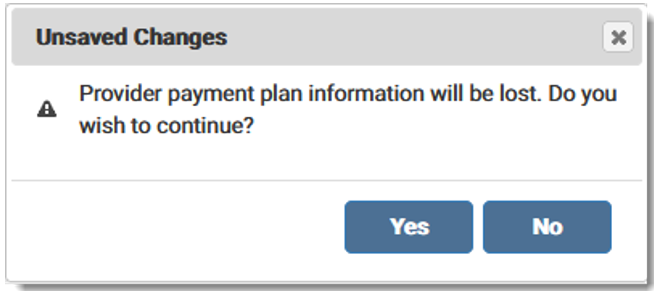
For Patient Financing, select the option from the drop-down menu and click Save. If the user has an active Provider Payment Plan and has Submitter information saved, it will be deleted upon selecting and saving Patient Financing. A warning message displays indicating that the provider plan information will be lost. Click No to return to the Patient Payment Portal screen or Yes to proceed.
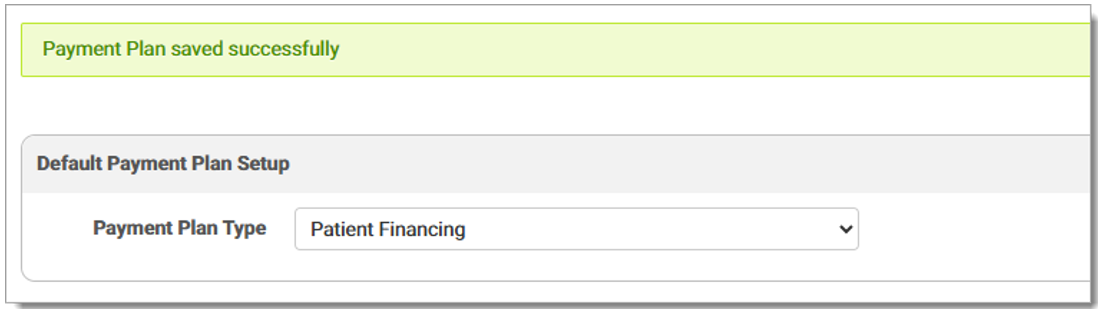
A success message displays stating the payment plan is saved.
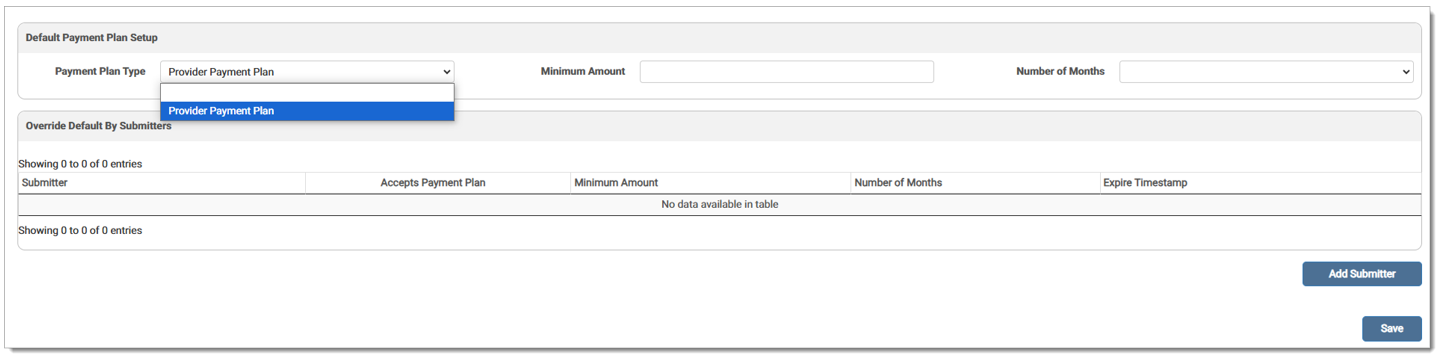
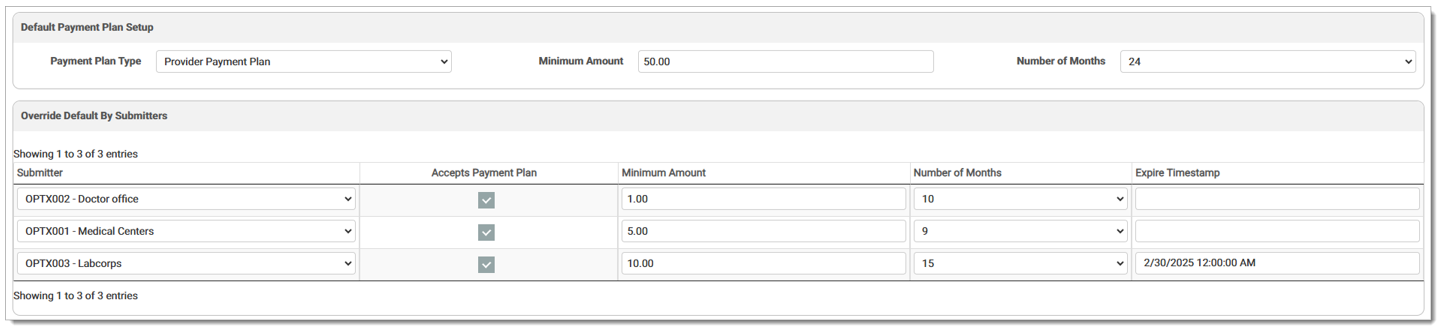
For the Provider Payment Plan, select the option from the drop-down menu and the related fields display. To set up the Default Payment Plan, enter a Minimum Amount to accept and select the maximum Number of Months for the payment plan from the drop-down menu (36 month maximum). This is the default payment plan and will be used for any submitters not set up individually.
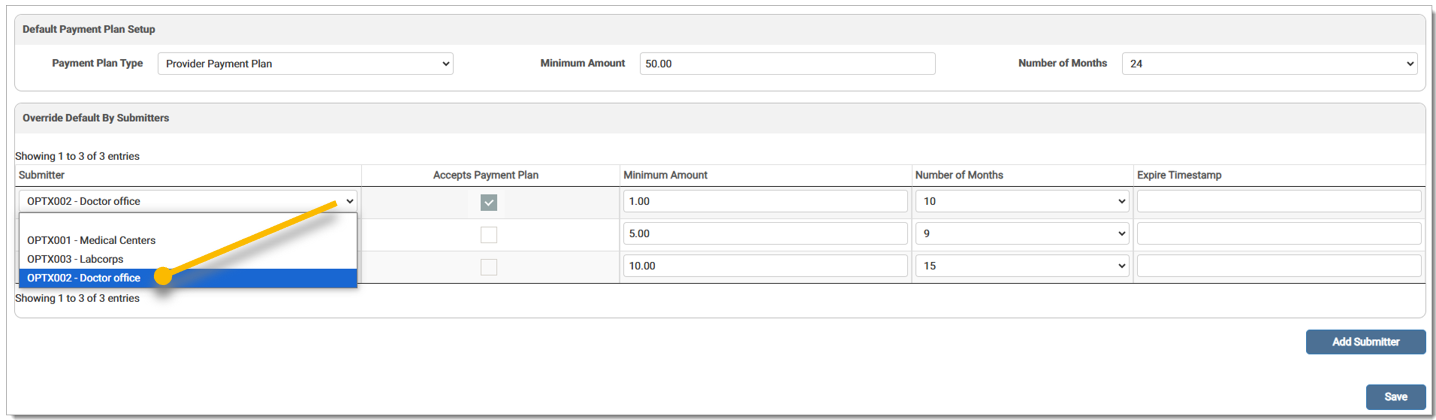
If there are particular submitters that should not offer payment plans or that should have different Minimum Amount and Number of Months settings, please use the Override Default by Submitters option. To set up an override, click Add Submitter. A blank row displays and the user should enter the applicable information into each field. Select the desired Submitter ID from the drop-down menu, enter a Minimum Amount to accept, and select the Number of Months for the payment plan from the drop-down menu (36 months maximum). Once saved, if the Accepts Payment Plan check box is marked, this payment plan will override the default payment plan setup for the selected Submitter ID. Note: Overrides can only be set up once for a submitter. Submitters must be unique.
To delete the row before saving, click the X in the Expired column. A prompt displays asking if you wish to proceed. Click OK to continue.
Users can remove custom settings for submitters by setting the Expire timestamp column and clicking Save. The expiration date displays in the grid. To unexpire an override, delete the date from the Expired field and click Save. If you unmark the check box, it means the submitter does not accept a payment plan.
Click Save to activate the changes. Once saved, if a user makes a payment via the Payment Portal that qualifies for a payment plan, they will see additional options on the screen to set it up.
A record is added to the Audit Log for the activity.
eMEDIX Online | Published: 2026.02.12 | ©copyright 2026 CompuGroup Medical, Inc. – All rights reserved.