
The Edits screen provides efficient management of edits, featuring a robust search option to help users easily locate specific entries. This interface allows users to activate or deactivate edits, modify or delete existing edits, and manage Claim Filing Indicator Usage and Payer Usage effectively.
There are two (2) tabs on the Edits screen: Edit Details and Audits. The Edit Details tab provides information regarding each edit, while the Audits tab allows users to view all modifications made to edits. Each entry in the Audits log is linked to a specific edit, offering a detailed audit trail or all changes made within the Edits feature. Note: Creating a rule limits how an edit fires. Changes made to an edit rule do not affect a claim until it is edited and saved again.
There are three (3) edit types:
Note: When a customer modifies a Standard edit, any updates to the original Standard edit may be missed. When a Standard edit is overridden with a modified version, any subsequent changes to the Standard edit do not automatically apply to the modified version. Thus, users must either update the Standard - Modifies edit manually or revert to the original Standard edit to incorporate the latest changes. Expiring a Standard - Modified edit will return it to a Standard edit.
To use Edits:
Click Edits from the Administration drop-down menu. The Edits screen displays and includes search options and a results grid. Users can search by Edit Type, Claim Type, Loop, Segment, Error Code, Error Message, CFI Usage, Payer Code Usage, Status, or click Search for an open-ended search. The newest edits are shown at the top of the grid.
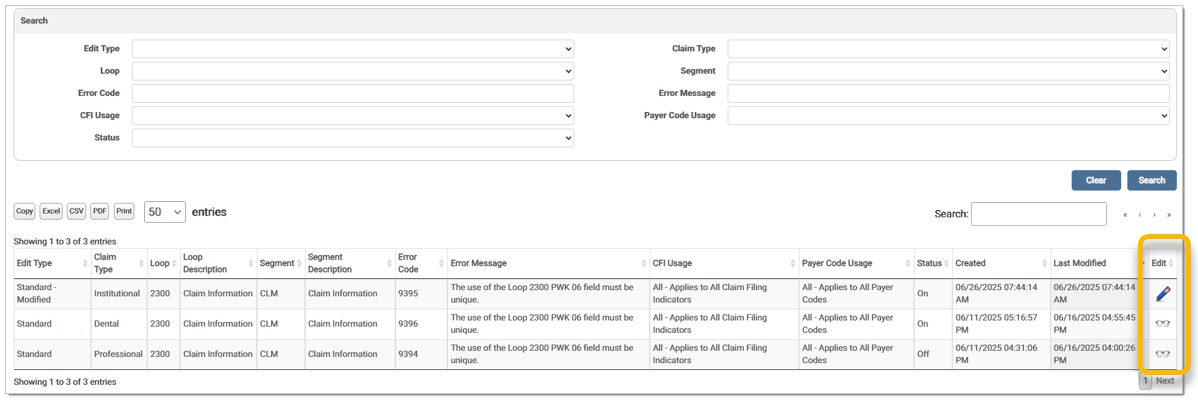
A glasses icon in the Edit column indicates an edit that cannot be modified. Click the icon for a read-only view of the Edit Details screen.
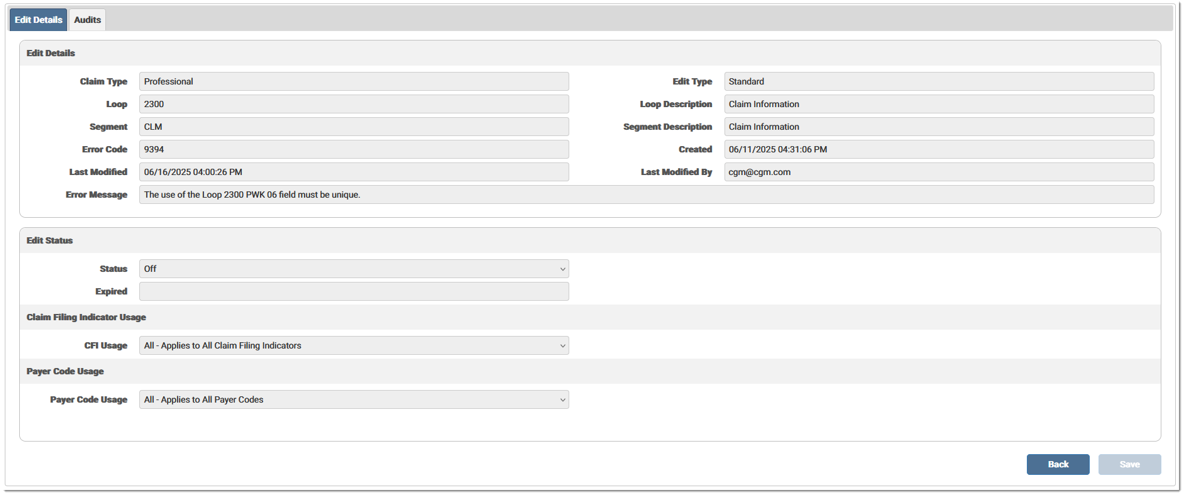
A pencil icon in the Edit column indicates any edit that can be modified. When the user selects the edit pencil, the Edit Details screen displays with the description of the edit selected. The Edit Details are disabled, but changes can be made to the Edit Status, Claim Filing Indicator Usage, and the Payer Code Usage sections.
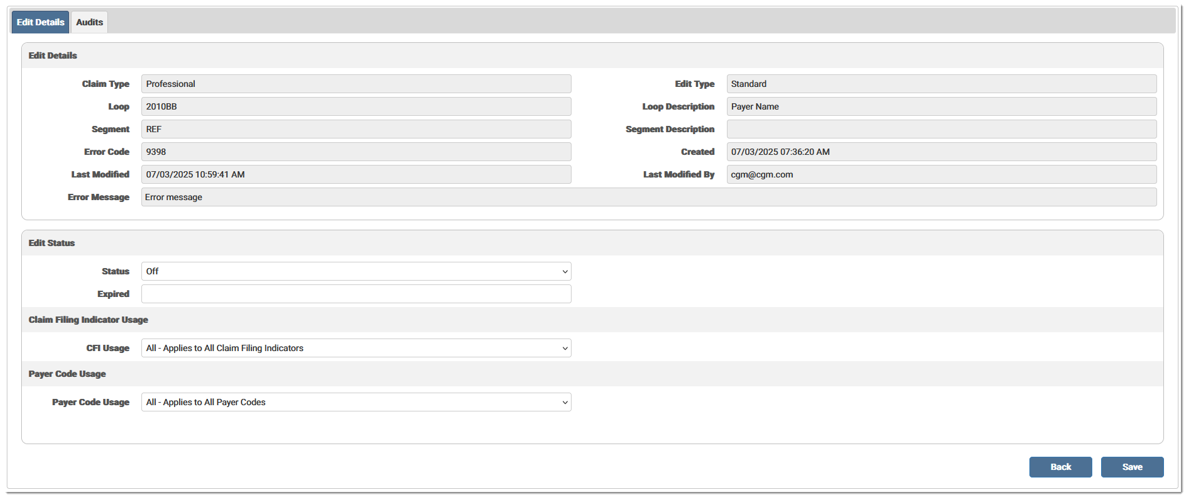
To activate and edit, set the Edit Status to On. This indicates the edit is active and fires. When the Status is set to Off, the edit is inactive and does not fire.

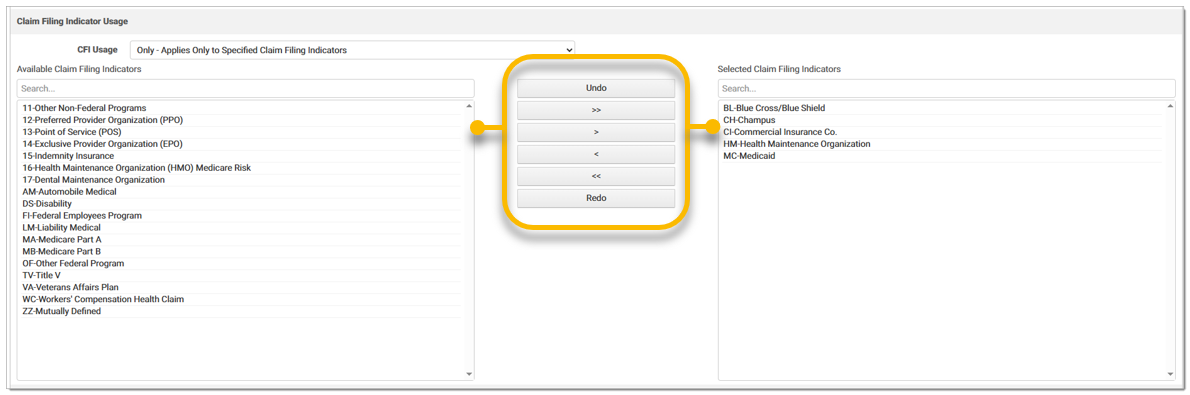
Users can edit the CFI Usage using the drop-down menu. The following options are available:
If Only or Exclude is selected, a grid displays to allow the user to add claim filing indicators to associate with the edit. At least one claim filing indicator must be added to save the edit. Select the desired CFI(s) and use the arrows to move them to the Selected column. If All is selected from the CFI drop-down menu, the selection area remains hidden.
Users can edit the Payer Code Usage using the drop-down menu. The following options are available:
If Only or Exclude is selected, a grid displays to allow the user to add payer codes to associate with the edit. At least one payer code must be added to save the edit at the Only or Excluded payer code level.

Click Add Payer Code to add payer codes to the edit. Enter the desired payer code and click OK.
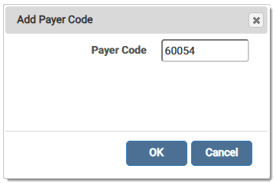
The new payer code displays in the grid. Click the X to delete a payer code. Continue to add any other payer codes needed.

If an edit cannot be released, the Edit Status section will indicate such with a message stating This edit cannot be overridden for release. The Release Claim functionality will be disabled for claims with this edit.

The details screen for a Standard - Modified edit shows the edited options in red. To the right of the changes, the original options for a Standard edit are shown, making it easy to identify the modifications made to the original edit. In the following example, the Edit Status for the Standard edit is Off, but it has been modified to On. Consequently, the Status displays in red, and eMEDIX Standard: Off is shown to the right to indicate the standard setting for this particular edit.
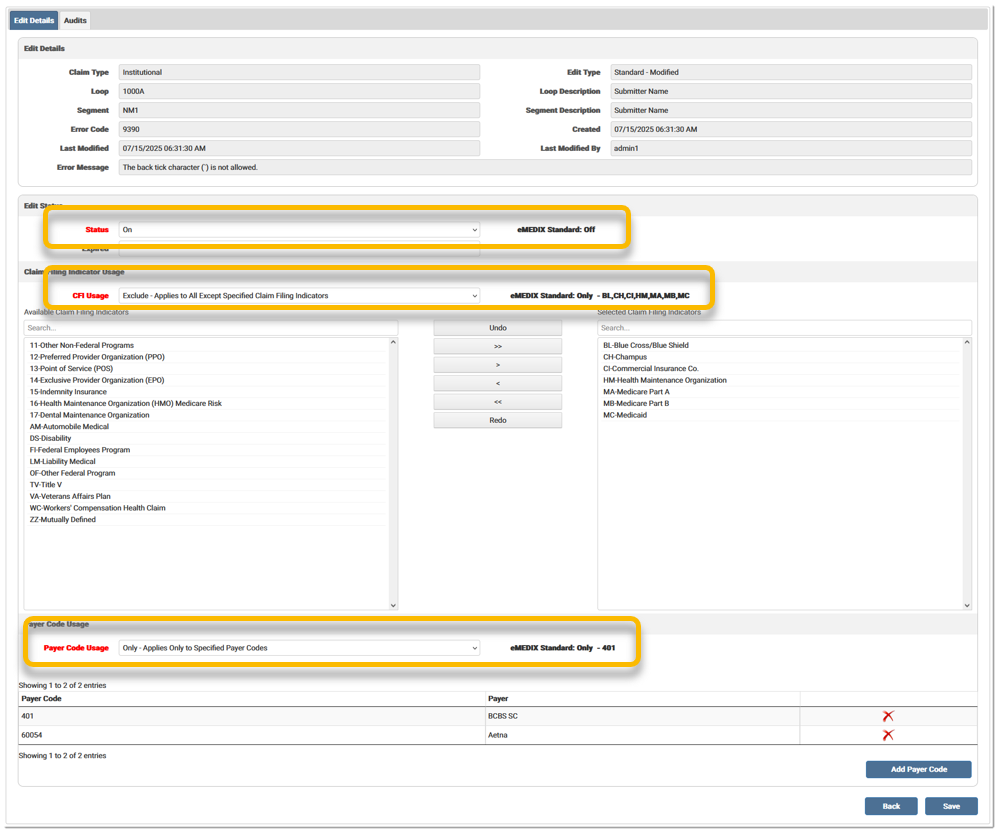
Once all changes have been made, click Save. A message displays stating the Edit saved successfully and the grid updates with the changes. Note: The Edit Type is now Standard - Modified. 
To return a Standard - Modified edit, expire the modified version. To expire an edit, enter a date in the Expired field and click Save. 
When exporting the search grid to Excel, the document includes only Standard - Modified edits. 
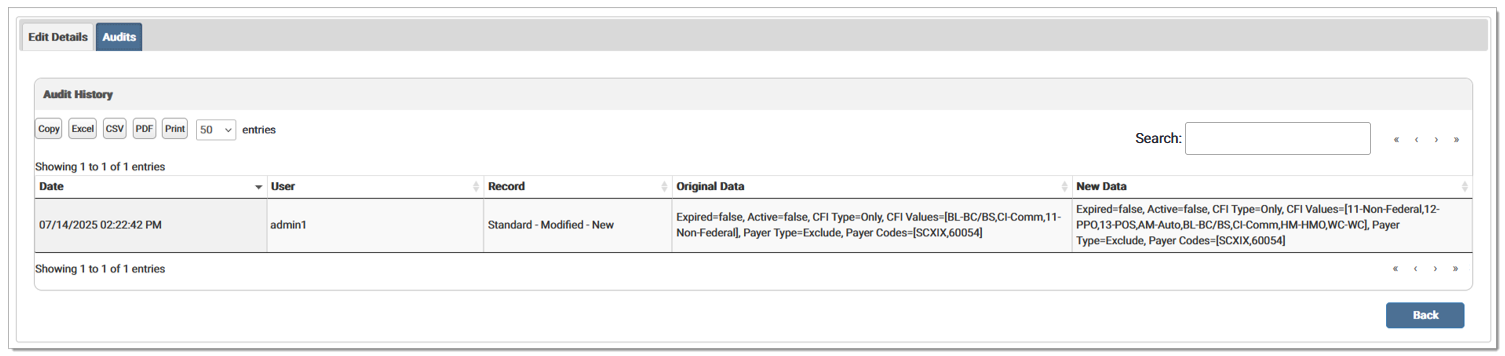
The Audits tab is available for each individual edit, displaying only the modifications made to the selected edit. Each activity is recorded in the Audits log is associated with that specific edit and can be viewed within this tab. The Original Data column shows the edit prior to the modifications, while the New Data column reflects the actual modifications. If the modification pertains to CFI or Payer Code Usage and includes Only or Exclude, the corresponding values will be displayed, assisting users in understanding exactly what changed.
Edit table options and descriptions:
|
Report Name |
Description |
| Edit Type | Indicates whether the edit is Custom, Standard, or Standard - Modified. |
| Claim Type | Indicates whether the edit fires for Professional, Institutional, or Dental claims. |
| Loop | The code identifying the loop in the file being validated. |
| Loop Description | A description for the segment loop. |
| Segment | The code identifying the field in the loop being validated. |
| Segment Description | A description for the segment. |
| Error Code | The code identifying the error on the claim. |
| Error Message | The message explaining the error received. |
| CFI Usage | Indicates to which claim filing indicator the edit is applied. Types include All (applies to all CFI), Only (applies to only specified CFI), and Exclude (applies to all except specified CFI). |
| Payer Code Usage | Indicates to which payers the edit is applied. Types include All (applies to all payers), Only (applies only to the payer codes listed), and Exclude (applies to all payer codes). |
| Status | The error code fires if it is active (On). An inactive (Off) code does not fire. |
eMEDIX Online | Published: 2026.06.11 | ©copyright 2026 CompuGroup Medical, Inc. – All rights reserved.