
eMEDIX Online allows users to manage custom edits through the Custom Edits feature. Only users with the appropriate permissions may make changes to Custom Edits.
To use Custom Edits:
Click Custom Edits from the Administration drop-down menu. The Custom Edits screen displays. The grid includes the edit ID, requester name, ticket number, claim type, description, payers, create date, and expired date. Users may expire any edit rules that are in effect from this screen. Any changes made in Custom Edits displays in the grid. 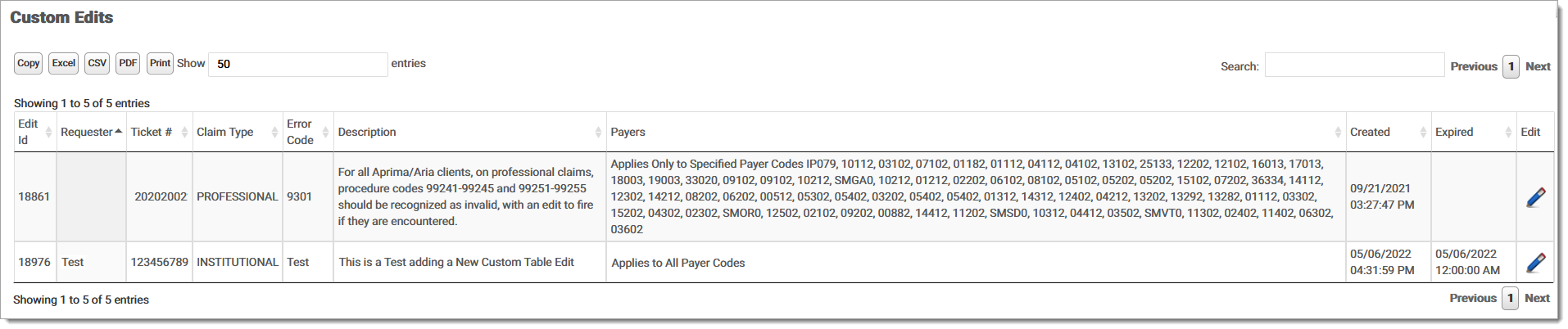
When the user selects the edit pencil, the Edit Details screen displays with the description of the selected edit. Payer Code Edit Type and Expired are the only editable fields. 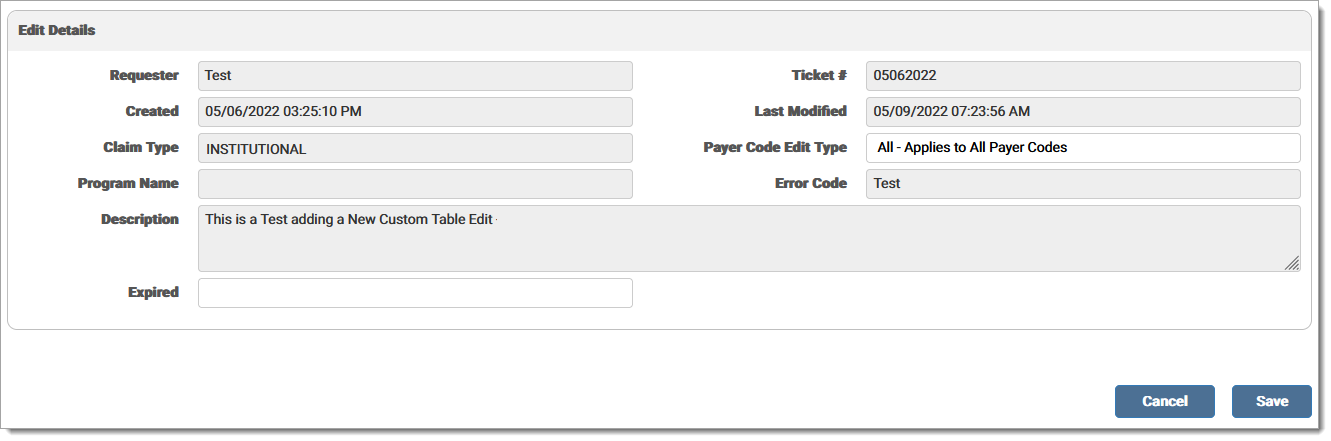
Users can edit the Payer Code Edit Type using the drop-down menu. The following options are available:
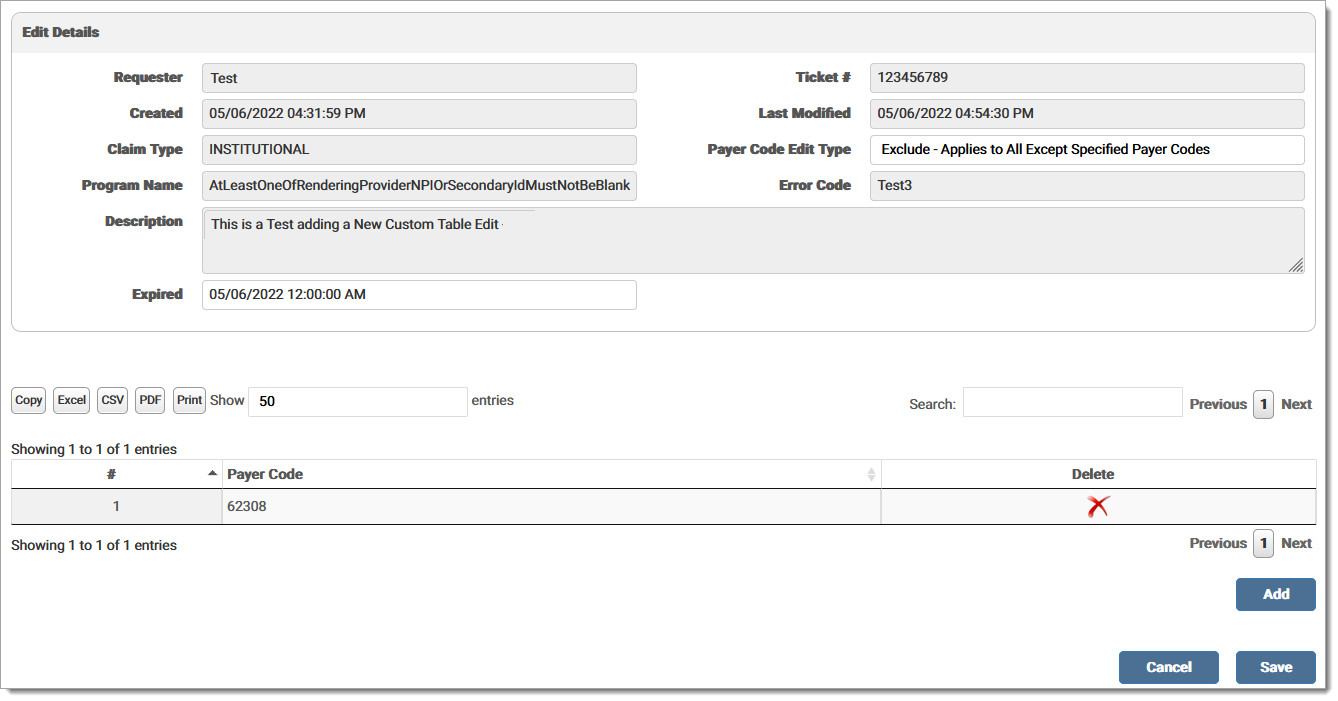
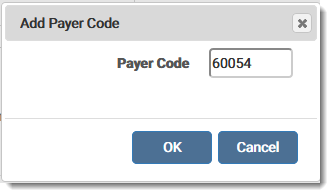


To expire an edit, enter a date in the Expired field. Click Save.
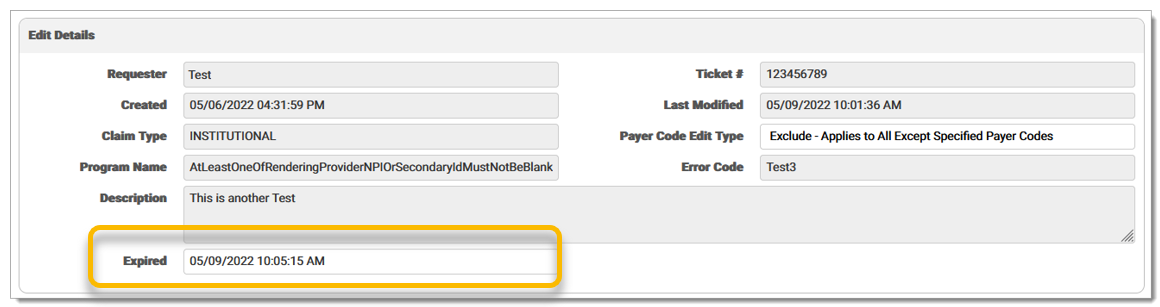
Once saved, the edit is expired in production the following day. If an edit is expired, a time stamp displays in the Expired column in the grid on the Custom Edits screen.

A record is added to the Audit Log for the activity.
eMEDIX Online | ©copyright 2025 CompuGroup Medical, Inc. All rights reserved.